User Guide

StudentConnect
Welcome to the StudentConnect User Guide! This comprehensive manual is designed to assist you in navigating the features of StudentConnect, a hassle-free team formation solution for CS2103T and CS2101 students to browse profiles and connect for the team project. Whether you're new to the platform or looking to enhance your understanding, this guide is tailored to meet your needs. To ensure a seamless experience, we recommend referring to the How to Use This Guide section before you get started. This section provides valuable insights on navigating the document, understanding icons and formatting, and optimising your overall journey.
Table of Contents
- How to Use This Guide
- Quick Start
-
Features
- General Commands
- Student Commands
-
Group Commands
- Creating a New Group :
create - Listing All Groups :
listGroup - Joining a Group :
join - Deleting a Group :
deleteGroup - Leaving a Group :
leave - Finding a Group by Group Number :
findGroup - Filtering Groups by Tutorial :
filterGroup - Checking a Group :
checkGroup - Listing All Tasks :
tasks - Marking a Task as Done :
mark - Marking a Task as Not Done :
unmark
- Creating a New Group :
- Saving The Data
- Editing The Data File
- FAQ
- Known Issues
- Command Summary
- Appendix
- Glossary
How to Use This Guide
This guide is designed to help you navigate the features of StudentConnect with ease.
- To assist you in understanding and using this manual effectively, we’ve included a symbol table that outlines the icons and notations you’ll encounter throughout the document.
| Symbol | Type | Description |
|---|---|---|
 |
Information | This icon indicates additional information or context that can help you understand the features or requirements better. |
 |
Tip | Look for this symbol when you need helpful suggestions on using StudentConnect features more efficiently. |
 |
Important | This alerts you to critical information or functionality within StudentConnect that you should pay close attention to. |
- Throughout this guide, we’ve provided screenshots that illustrate the expected output for each command and feature. This visual aid is designed to enhance your understanding and ensure that you can confidently anticipate the results of your actions. Below is a detailed overview of the various interface components that you’ll become familiar with.
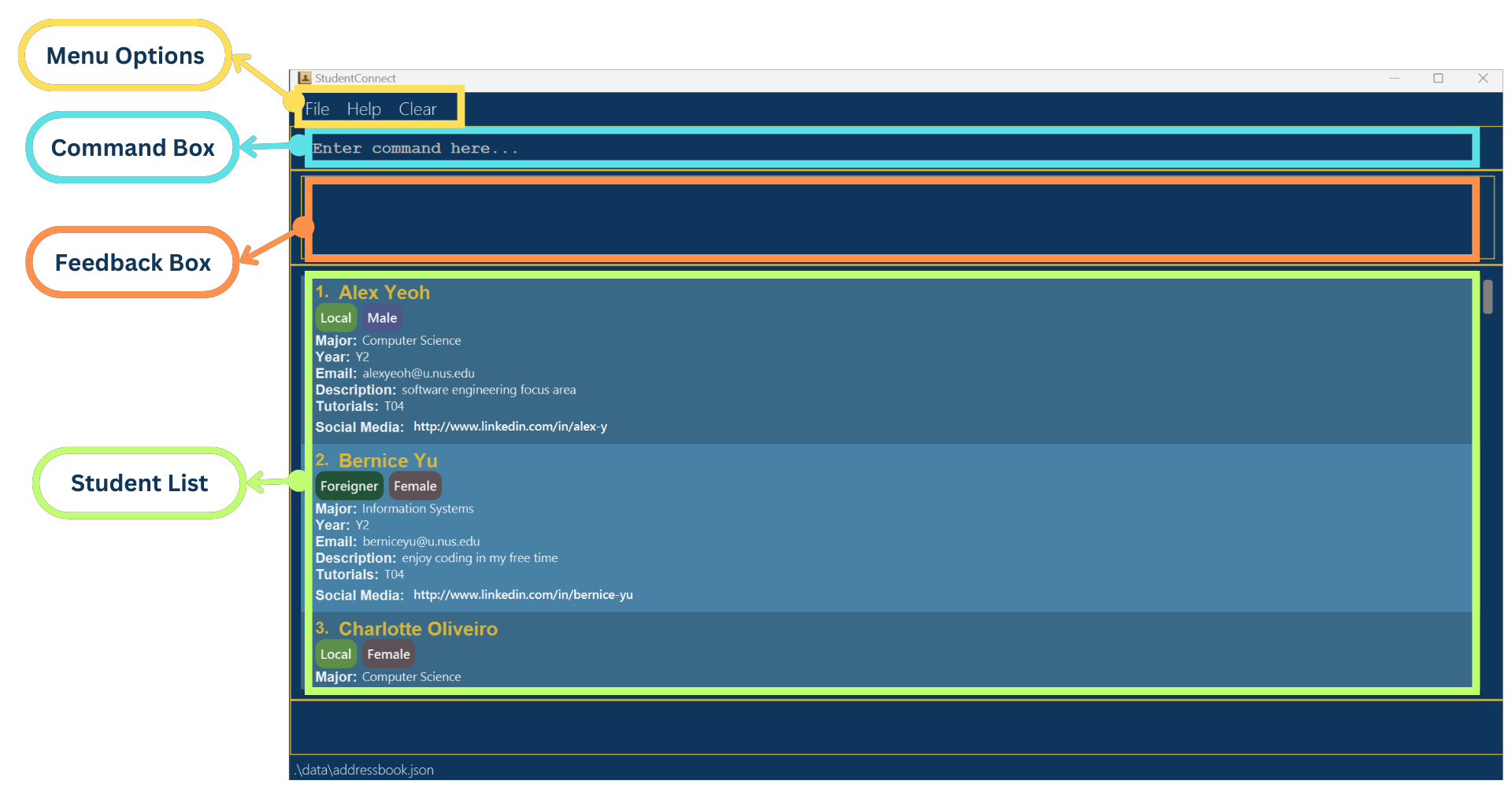
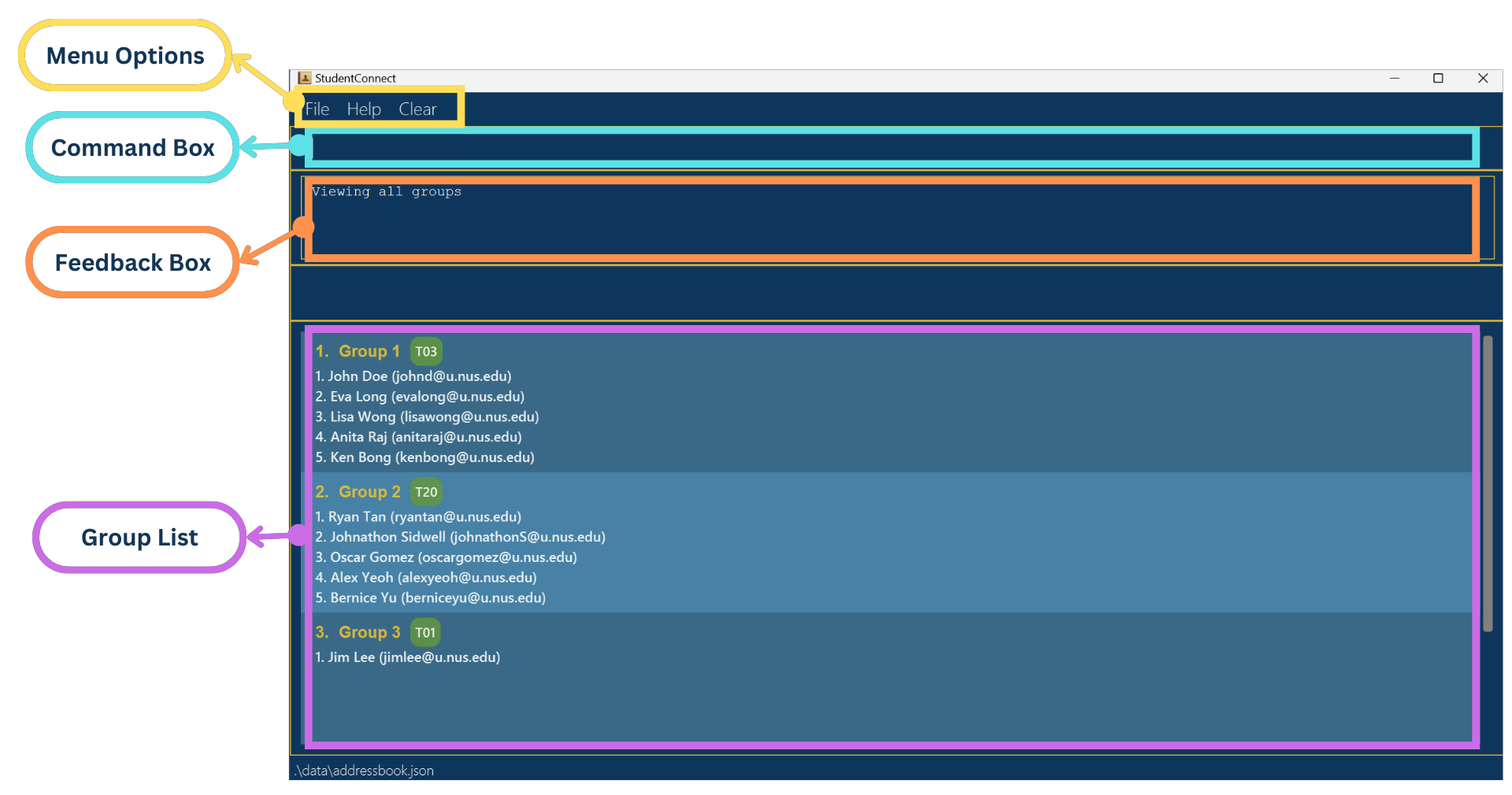
- Command Box: This is where you can enter any command for execution. After typing your command, press Enter to submit. If there is a syntax error or the command is unrecognisable, the text will turn red, prompting you to correct the command according to the specified requirements before pressing Enter again.
-
Feedback Box: The feedback box is the area where the application communicates responses to your commands. It displays the correct command format if there is an input error, error messages when a command fails to execute, and the outcomes for commands like the
taskscommand. - Student List: The student list panel displays a roster of all students and their associated details. Executing any student-related command will result in this panel being updated to show the relevant student list.
- Group List: Similar to the student list, the group list panel shows all existing groups along with their members and designated tutorials. Group-related commands will update this panel accordingly.
- Menu Options: The menu options provide quick access to general tasks within the application. Note that no messages are displayed in the feedback box when using the menu options.
Important:
To guarantee that all your changes and data are saved correctly, it is strongly advised to type the exit command into the Command Box,
instead of selecting exit from the menu options or closing the application window directly.
This practice helps prevent data loss and ensures a proper shutdown of the application.
- For convenient navigation throughout this UG, you can refer to the table of contents.
- Should you encounter any terminology within the guide that is unfamiliar, you can consult the glossary section below. It provides clear definitions and explanations to help you grasp the specialised language used throughout this guide.
- For any inquiries, the faq section is a good place to look for answers. In case your question is not addressed there, do not hesitate to submit an issue here for further assistance.
- The appendix section is included to detail all possible input values for fields that have specific constraints or require particular formats. This reference can help ensure that you input data correctly and understand the limitations of each field.
- For a quick and compact overview of all the commands that StudentConnect offers, refer to the command summary. This section servers as a handy reference for all possible actions you can perform within the application, laid out in an easily digestible format.
Quick Start
-
Ensure you have Java
11or above installed in your Computer. If not, you can download Java11from here. -
Download the latest
studentconnect.jarfrom here. -
Copy the file to the folder you want to use as the home folder for your StudentConnect.
-
Open a command terminal, and type
cdto change the current working directory into the folder you put the jar file in. Use thejava -jar studentconnect.jarcommand to run the application.
A GUI similar to the below should appear in a few seconds. Note how the app contains some sample data.
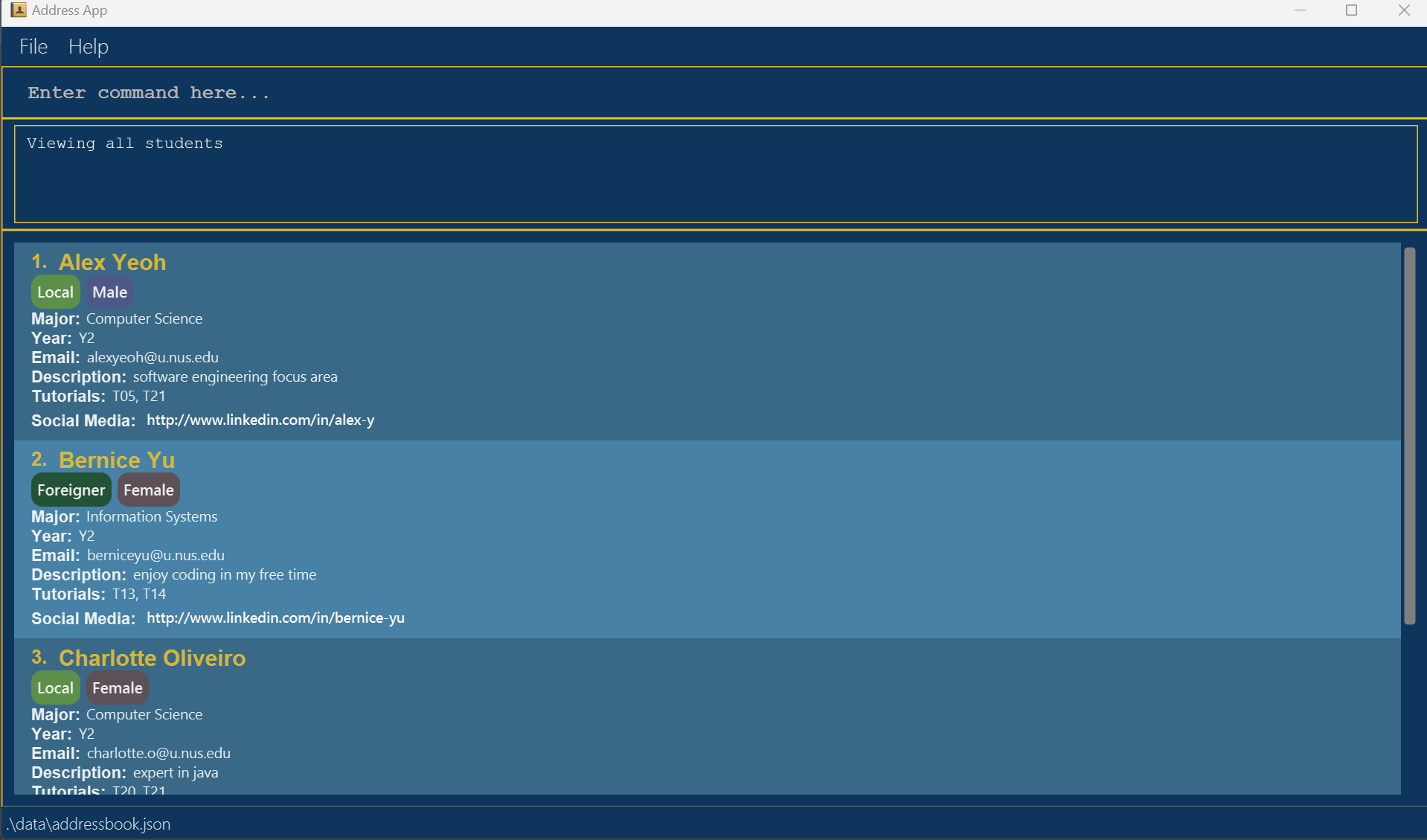
-
Type the command in the command box and press Enter to execute it. e.g. typing
helpand pressing Enter will open the help window.
Some example commands you can try:-
list:- Lists all students in the StudentConnect system.
-
add n/John Doe m/Computer Science y/2 e/johnd@u.nus.edu d/I love programming in my free time t/02 t/17 t/20 sm/https://www.linkedin.com/in/john-doe-123456789 nt/local g/m:- Adds a student named
John Doeand his details to the StudentConnect system.
- Adds a student named
-
delete EMAIL:- Deletes the student with the corresponding email.
-
create t/03:- Creates a new group assigned to tutorial 3.
-
clear:- Deletes all data from the system (i.e. students, groups, and tasks).
-
exit:- Exits the app.
-
-
Refer to the Features below for details of each command.
Features
Notes about the command format:
-
Words in
UPPER_CASEare the parameters to be supplied by you.
e.g. inadd n/NAME,NAMEis a parameter which can be used asadd n/John Doe. -
Items in square brackets are optional.
e.g.n/NAME [t/TUTORIALS]can be used asn/John Doe t/02or asn/John Doe. -
Items with
… after them can be used multiple times including zero times.
e.g.[t/TUTORIALS]…can be used ast/03,t/11 t/20etc. -
Parameters can be in any order.
e.g. if the command specifiesn/NAME m/MAJOR,m/MAJOR n/NAMEis also acceptable. -
Extraneous parameters for commands that do not take in parameters (such as
help,list,exitandclear) will be ignored.
e.g. if the command specifieslist 123, it will be interpreted aslist. -
Commands must be in lower case.
e.g.listis a valid command, butLISTis not. -
If you are using a PDF version of this document, be careful when copying and pasting commands that span multiple lines as space characters surrounding line-breaks may be omitted when copied over to the application.
General Commands
Important:
StudentConnect provides a set of general commands to make it more convenient for you to navigate the app.
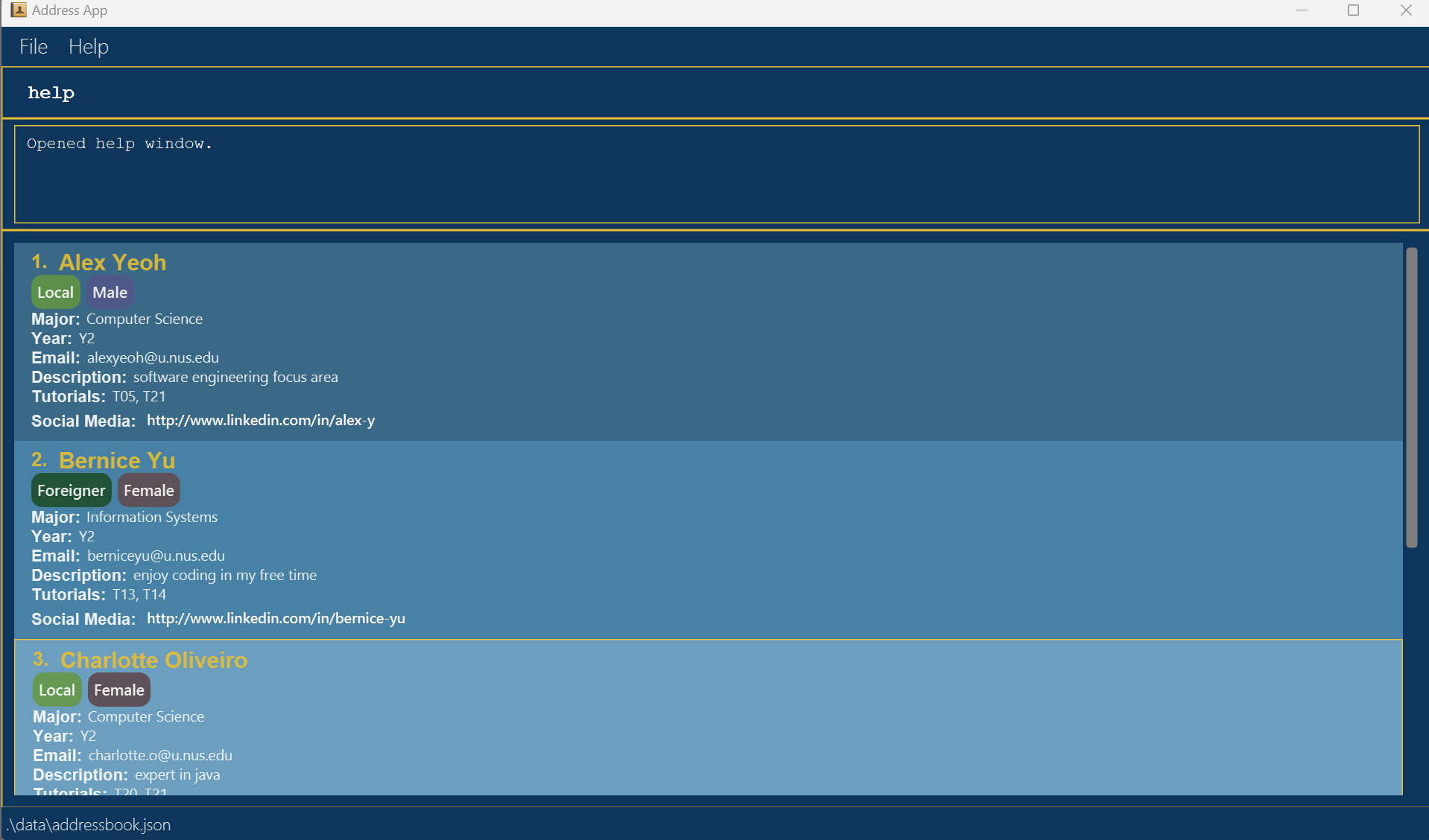
Viewing Help : help
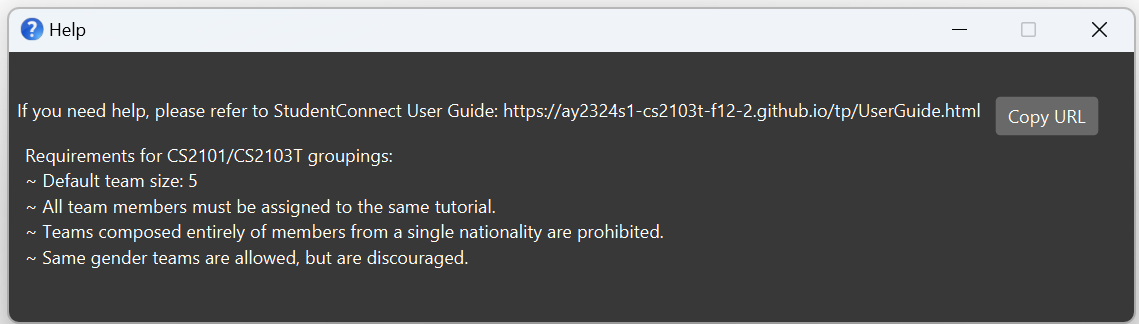
Shows a message explaining how to access the help page in the user guide and a button to copy the link.
Provides a list of requirements for forming a group in CS2103T/CS2101.
Format: help
Expected Output:
- GUI: Help window opened with help message, copy button and requirement message.
- Message:
Opened help window.
Clearing All Entries : clear
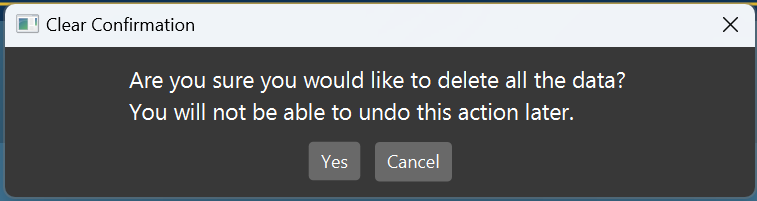
Clears all entries from the system upon confirmation in the pop-up.
Format: clear
- Confirmation Pop-up opened.
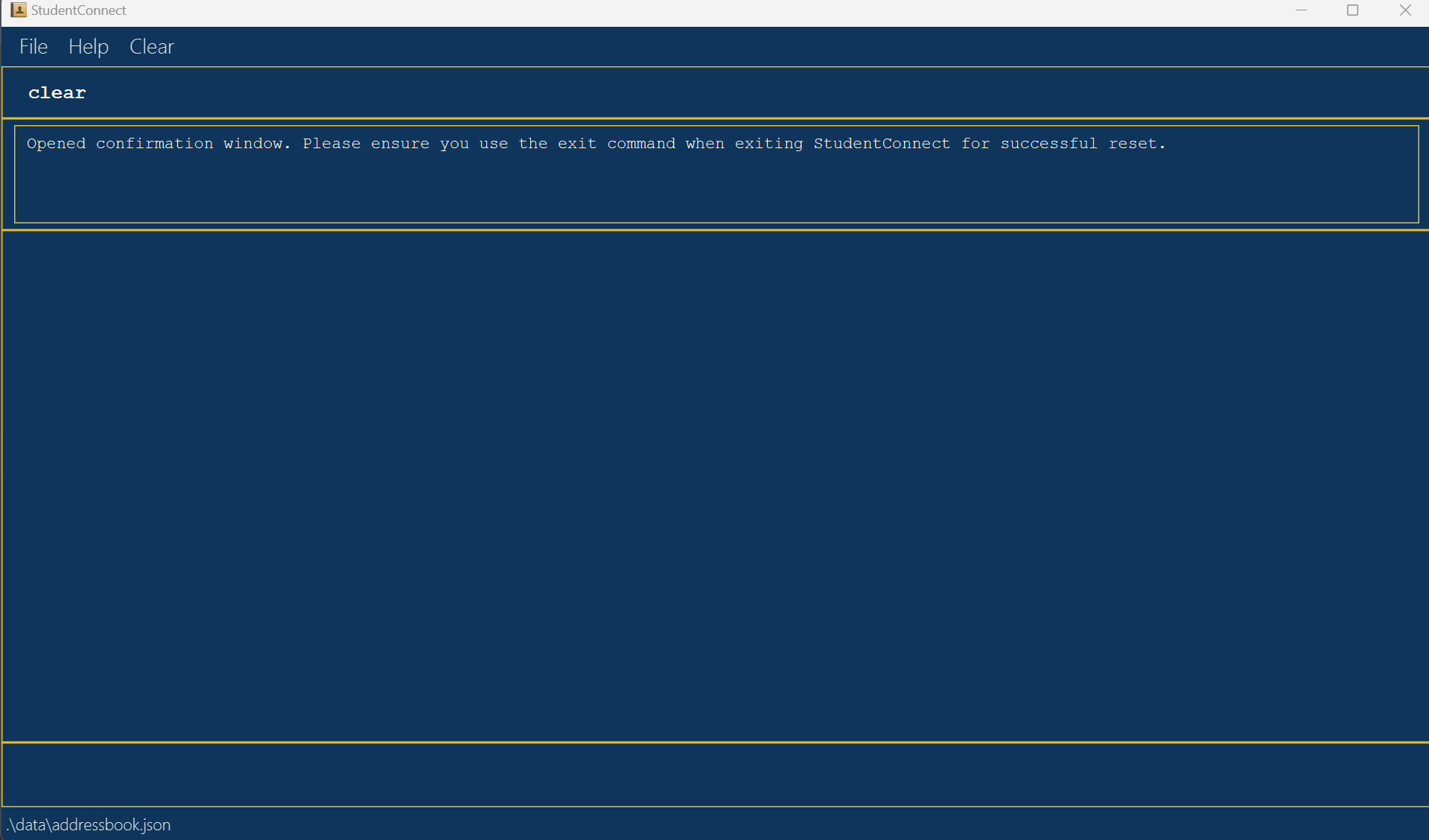
- Message:
Opened confirmation window. Please ensure you use the exit command when exiting StudentConnect for successful reset.
Expected Output (Success):
- GUI: All students’ details are removed from the student list.
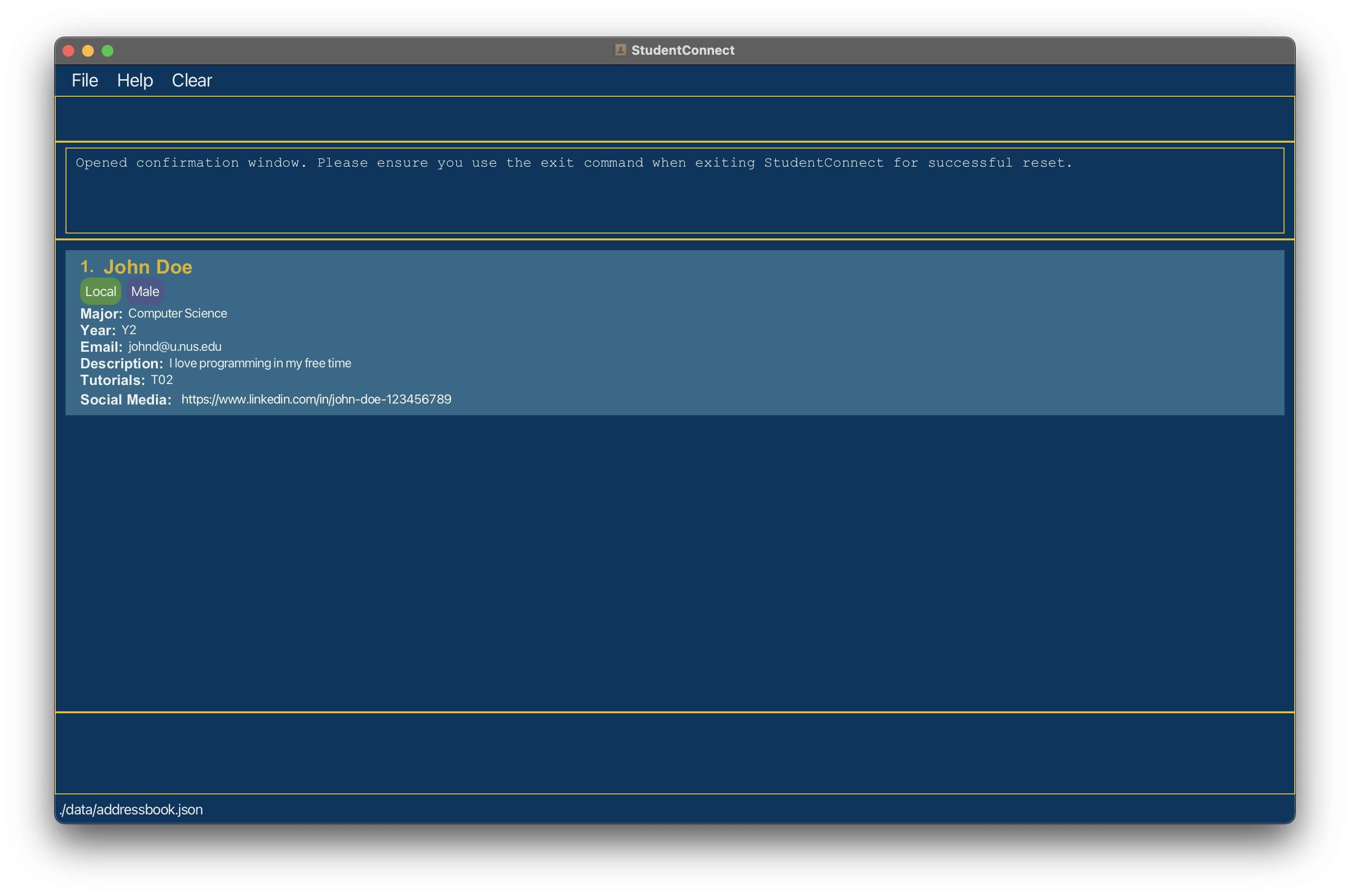
Expected Output (Failure or Cancellation):
- Case: Clear command fails.
- Case: You press
cancelon the confirmation pop-up.
GUI: All students’ details remain on the student list.
Exiting The Program : exit
Exits the program.
Format: exit
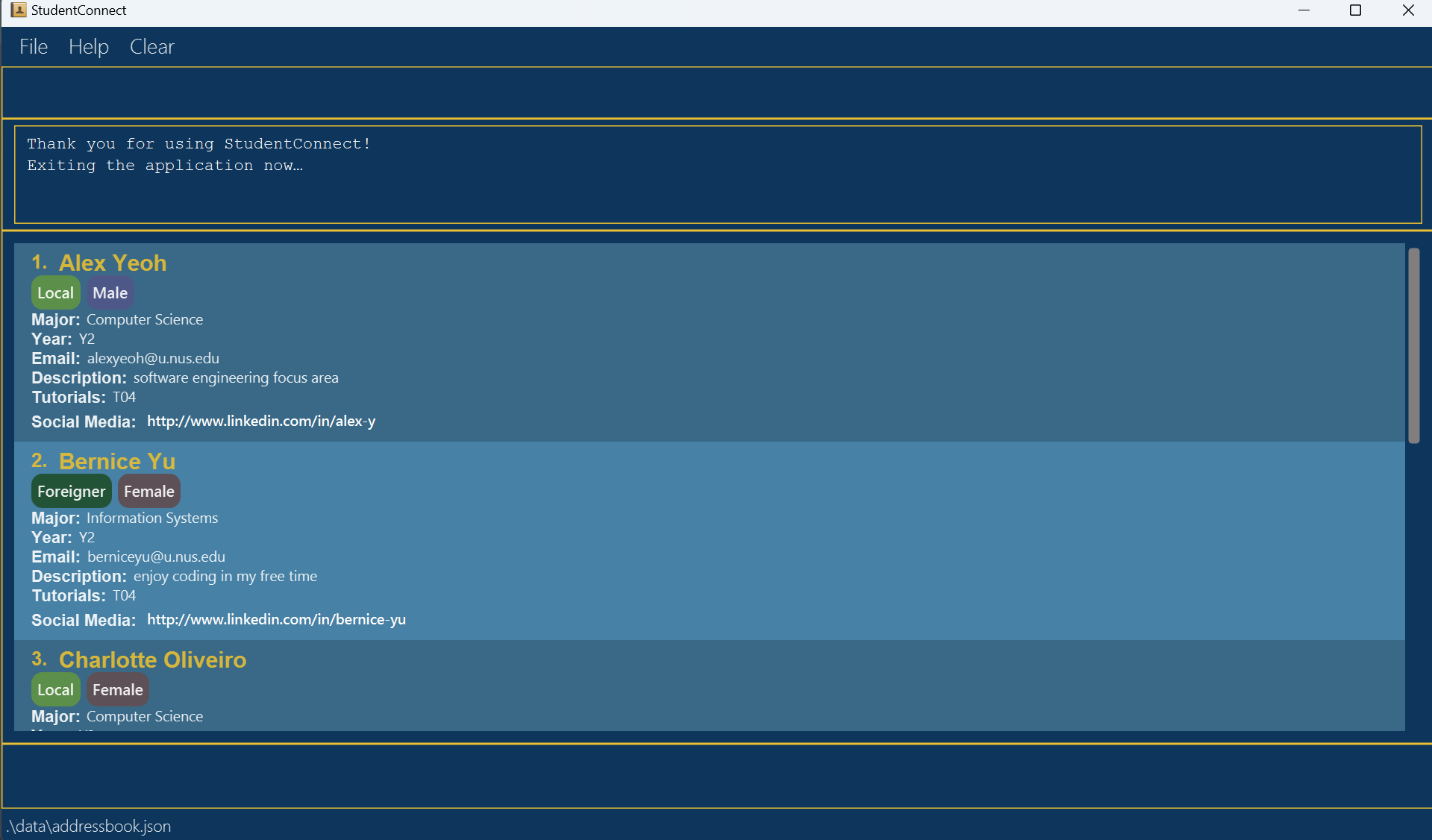
Expected Output (Success):
- GUI: Application window closes.
- Message (before closing):
Thank you for using StudentConnect! Exiting the application now…
Expected Output (Failure):
- Message:
Error: Exiting the program failed.
Student Commands
Important:
StudentConnect provides a set of student information to make it more convenient for students to connect with others.
Adding a Student : add
Adds a student to the system.
Format: add n/NAME m/MAJOR y/YEAR e/EMAIL d/DESCRIPTION [t/TUTORIALS]… [sm/SOCIALMEDIA]… nt/NATIONALITY g/GENDER
Tip:
Including social media links and tutorial groups are optional.
Tip:
A student can include multiple tutorial groups they are interested in. Add multiple tutorial groups by using t/ repeatedly.
Tip:
A student can have any number of social media links. Add multiple social media links by using sm/ repeatedly.
Examples:
add n/John Doe m/Computer Science y/2 e/johnd@u.nus.edu d/I’m a Frontend Developer t/06 t/19 sm/https://www.linkedin.com/in/john-doe-123456789 nt/local g/madd n/Betsy Crowe m/Computer Science y/2 e/betsycrowe@u.nus.edu d/I’m adept at Backend technologies t/05 nt/foreigner g/f
Acceptable Values:
- Name: Full names with alphabetical characters. Maximum 30 characters.
- Major: Valid major names at NUS. View the valid majors list below for more information.
- Year: Numeric year level. Accept values between
1and6inclusive. - Email: Valid email address ending in
@u.nus.edu. Maximum 20 characters. - Description: Maximum 150 characters.
- Tutorials: Two digit integers between
01and22inclusive. Multiple tutorial slots can be added by usingt/repeatedly. - Social Media Link: Valid URL format to social media account. It must start with
https://. Multiple URLs can be added by usingsm/repeatedly. - Nationality: Either
localorforeigner. - Gender: A single character, either
morf.
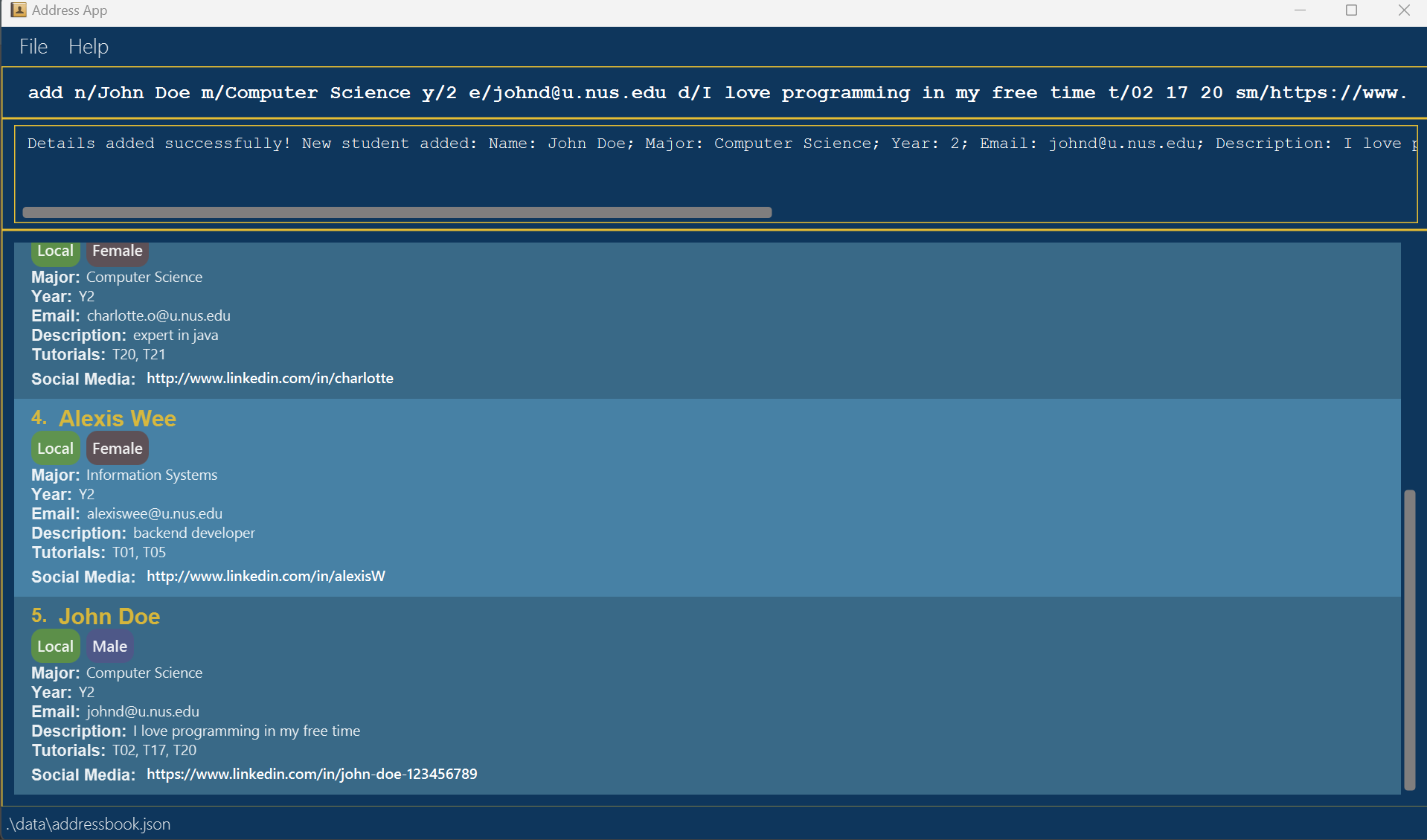
Expected Output (Success):
- GUI: New student entry added in the main student list.
- Message:
Details added successfully! New student added: (details of new student).
Note:
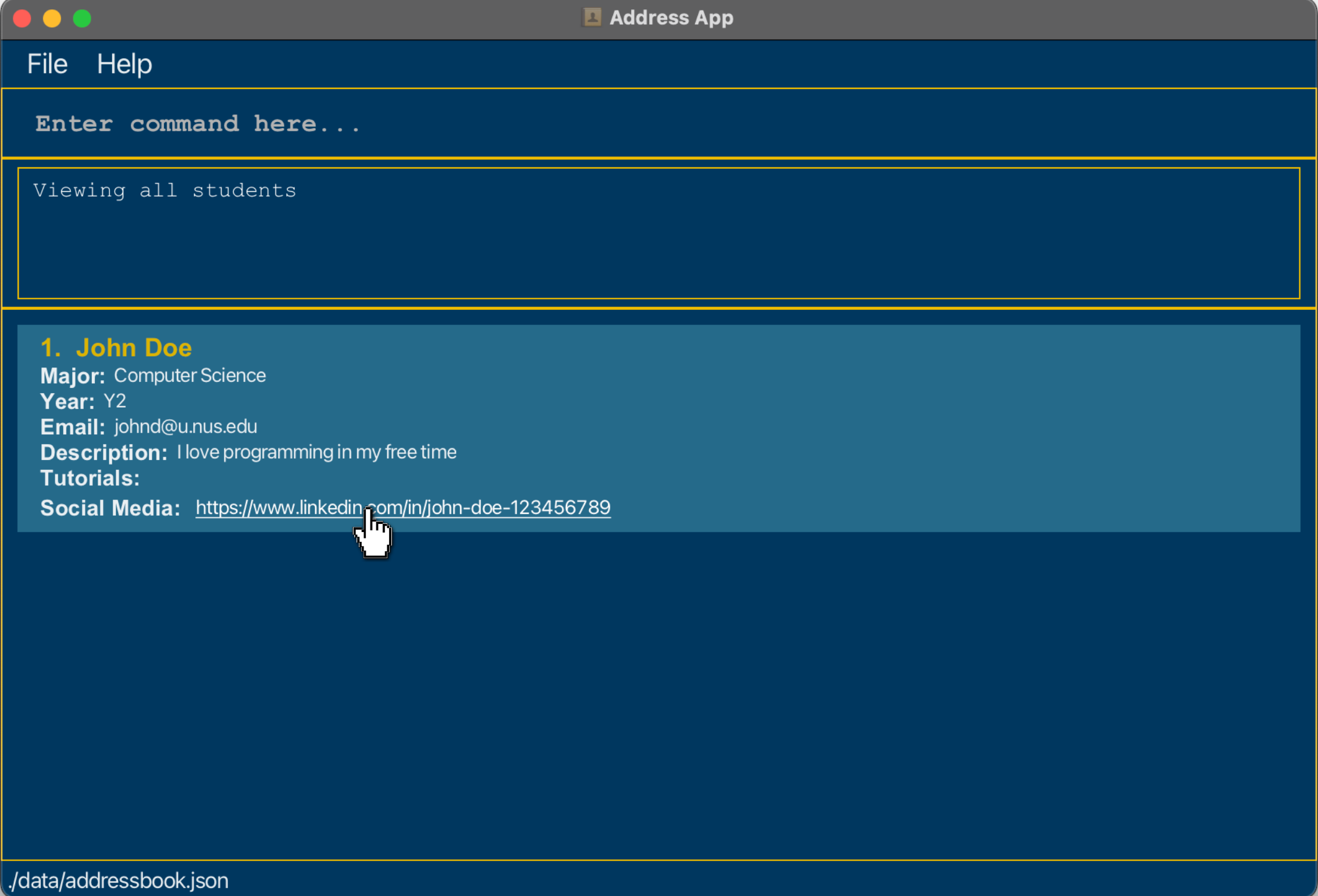
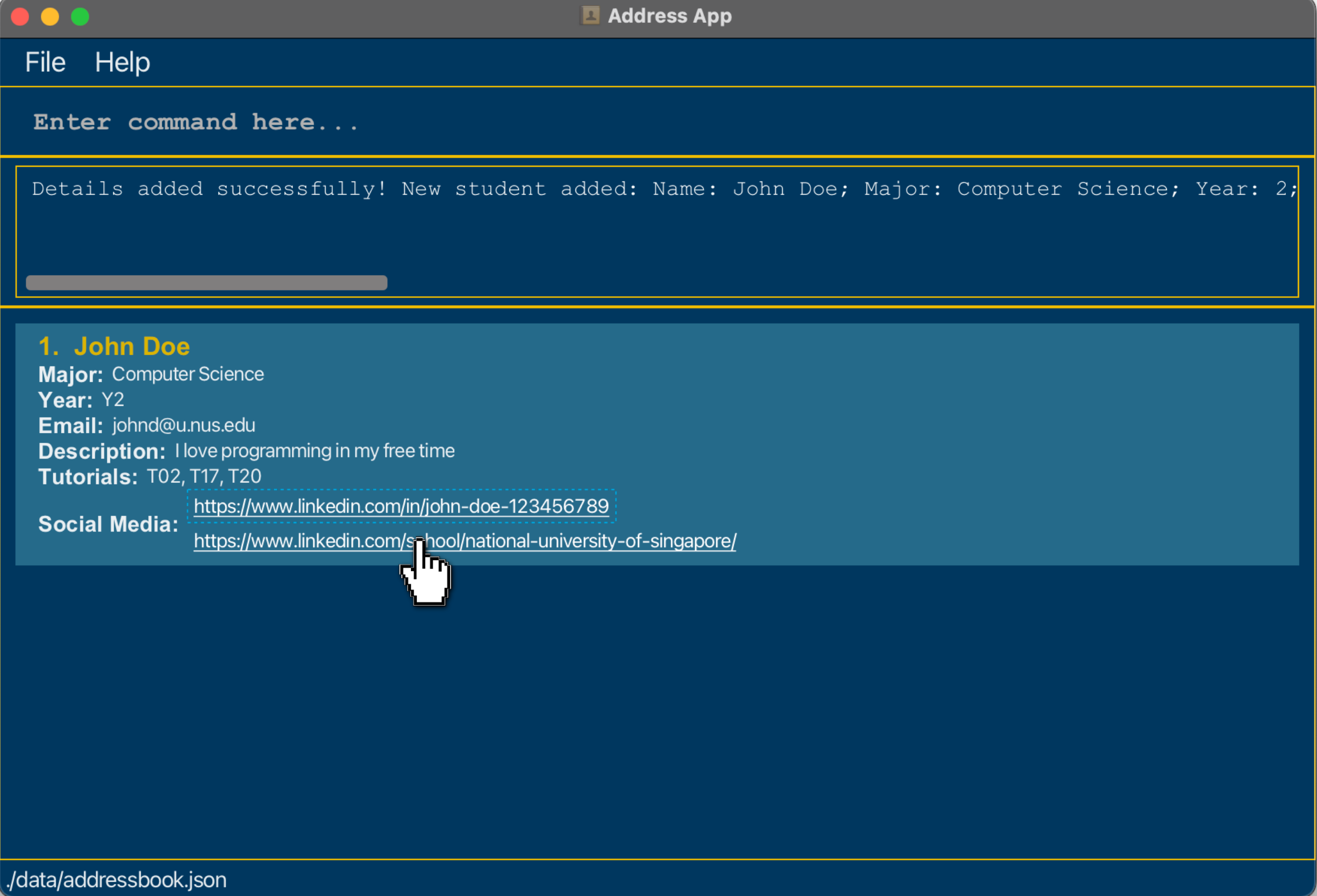
- Social media links can be clicked.
- The link will be opened on a browser upon clicking.
Expected Output (Failure):
- Case: Invalid command format, e.g.
add,add 1, etc.
Message:Invalid command format! add: Adds a student to StudentConnect.
Parameters: n/NAME m/MAJOR y/YEAR e/EMAIL d/DESCRIPTION [t/TUTORIALS]... [sm/SOCIAL_MEDIA_LINK]... nt/NATIONALITY g/GENDER
Example: add n/John Doe m/Computer Science y/2 e/johnd@u.nus.edu d/I love programming in my free time
t/02 sm/https://www.linkedin.com/in/john-doe-123456789 nt/local g/M;
Listing All Students : list
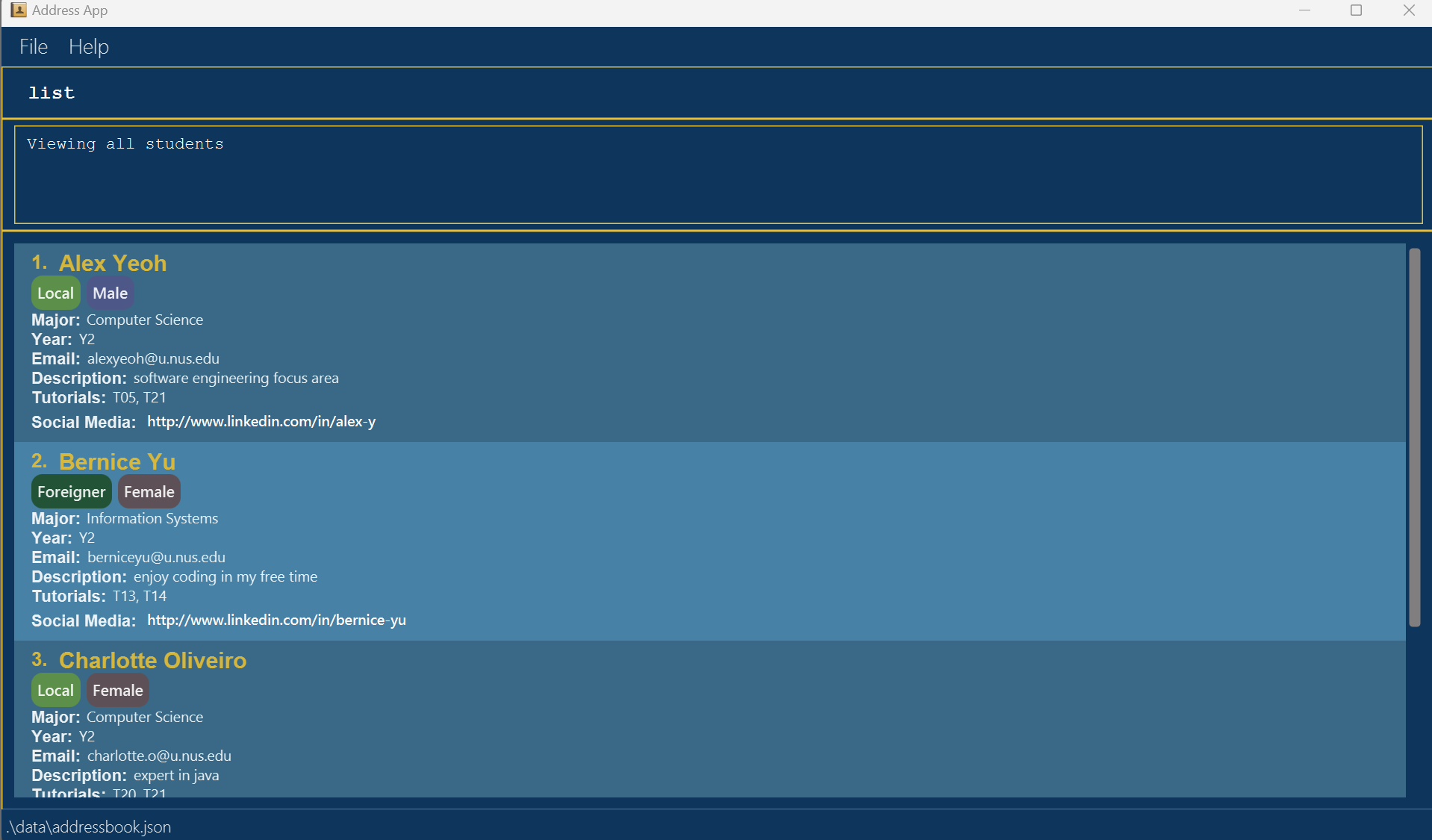
Shows a list of all students in the system.
Format: list
Expected Output (Success):
- GUI: List of all student entries in the system.
- Message:
Viewing all students
Expected Output (Failure):
- Message:
Error: Unable to retrieve student entries. Please try again.
Editing a Student : edit
Edits an existing student in the system.
Format: edit EMAIL [n/NAME] [m/MAJOR] [y/YEAR] [e/EMAIL] [d/DESCRIPTION] [t/TUTORIALS]… [sm/SOCIALMEDIA]… [nt/NATIONALITY] [g/GENDER]
- Edits the student with the specified EMAIL.
- At least one of the optional fields must be provided.
- Existing values will be updated to the input values.
- When editing tutorials, the existing tutorials of the student will be removed i.e. adding of tutorials is not cumulative.
- When editing social media, the existing social media of the student will be removed i.e. adding of social media is not cumulative.
- You can remove all the student’s social media by typing
sm/without specifying any social media after it.
Tip:
A student can edit to include multiple tutorial groups they are interested in. Add multiple tutorial groups by using t/ repeatedly.
Tip:
A student can edit to have any number of social media links. Add multiple social media links by using sm/ repeatedly.
Examples:
-
edit johnd@u.nus.edu y/3 e/johndoe@u.nus.eduEdits the year and email address of the student with the emailjohnd@u.nus.eduto be3andjohndoe@u.nus.edurespectively. -
edit betsycrowe@u.nus.edu n/Betsy Crower sm/Edits the name of the student with the emailbetsycrowe@u.nus.eduto beBetsy Crowerand clears all existing social media.
Acceptable Values:
- EMAIL: a previously registered email address ending in
@u.nus.edu.
Expected Output (Success):
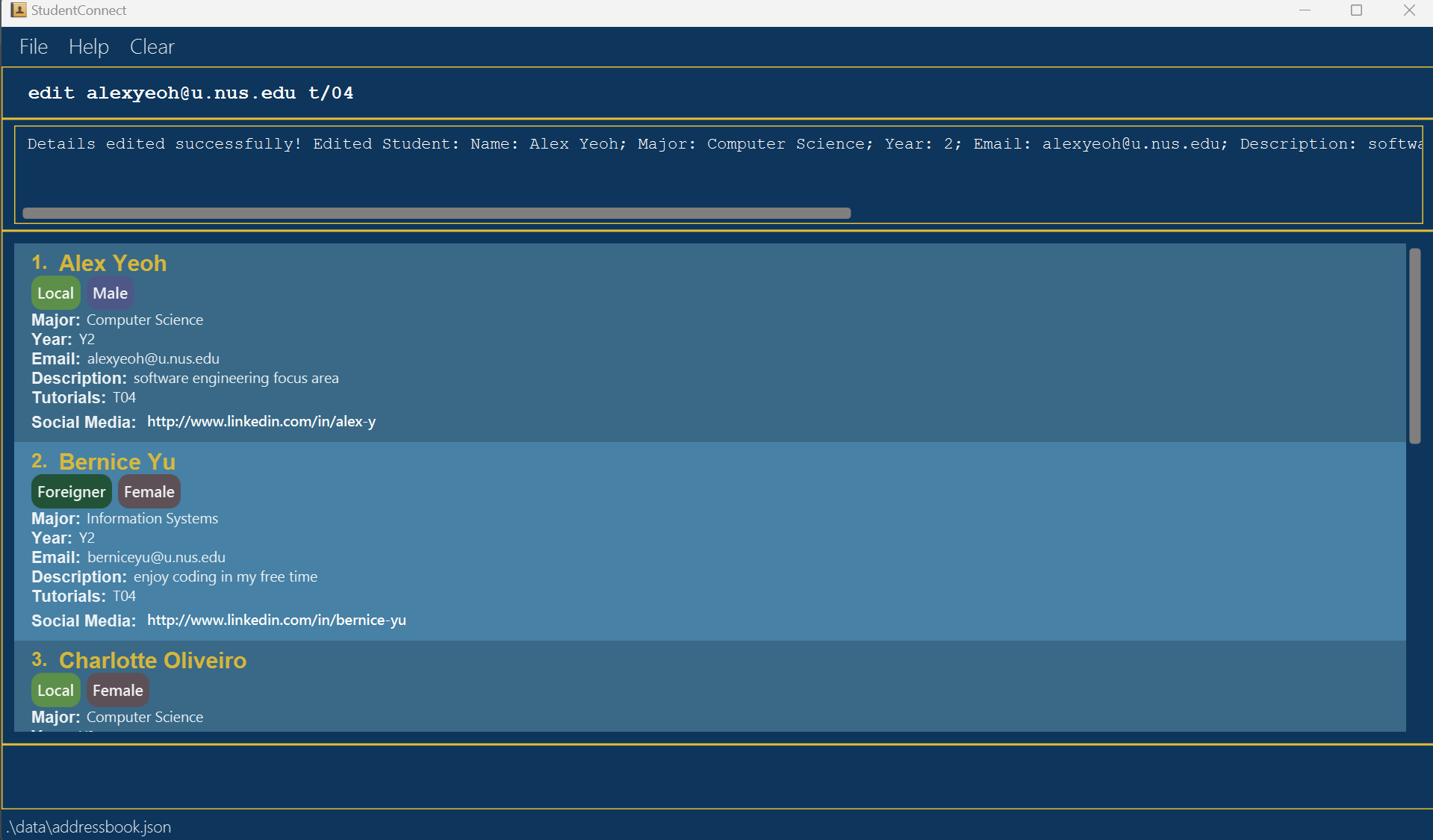
- GUI: Student details updated in the student list.
- Message:
Details edited successfully! Edited Student: [Updated data]
Expected Output (Failure):
- Case: No fields provided for edit.
Message:At least one field to edit must be provided. - Case: Email not found in the system.
Message:Student with the provided email not found.
Finding a Student by Name : find
Finds student(s) whose name(s) contain any of the given keywords.
Format: find KEYWORD [MORE_KEYWORDS]…
- The search is case-insensitive. e.g.
johnwill matchJohn. - The order of the keywords does not matter. e.g.
John Doewill matchDoe John. - Only the name is searched.
- Partial words can be matched. e.g.
Johnwill matchJohnny. - Students matching at least one keyword will be returned (i.e.
ORsearch). e.g.John Crowewill returnJohn Doe,Betsy Crowe.
Examples:
-
find Johnreturnsjohn,John DoeandJohnny Wee. -
find john betsyreturnsJohn Doe,Betsy Crowe.
Expected Output (Success):
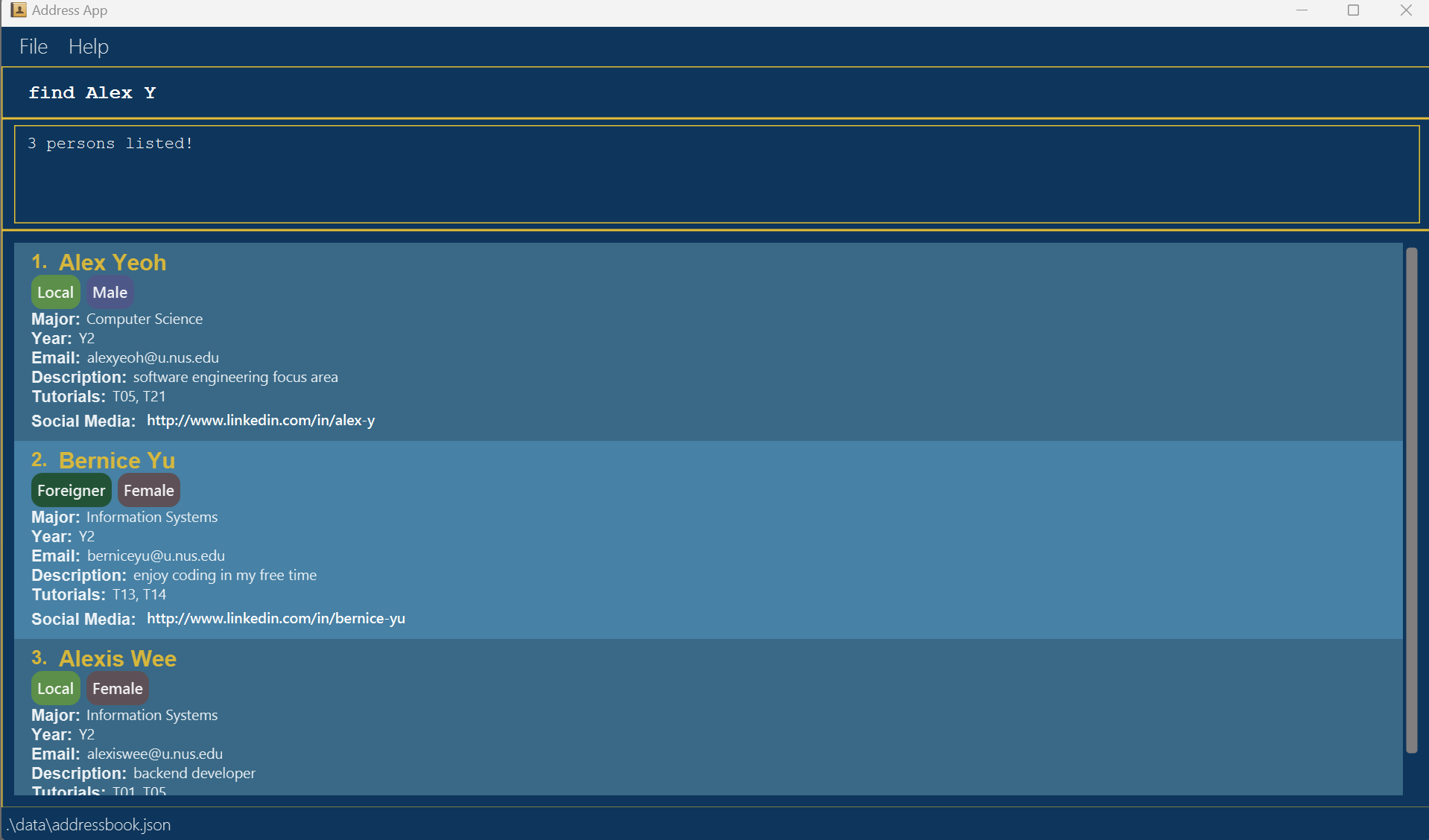
- GUI: List of all student entries whose name(s) match the keyword(s) in the system.
Expected Output (Failure):
- Case: Invalid command format, e.g.
find.
Message:Invalid command format!
find: Finds all students whose names contain any of the specified keywords (case-insensitive) and displays them as a list with index numbers.
Parameters: KEYWORD [MORE_KEYWORDS]...
Example: find alice bob charlie
Filtering Students by Tutorial : filter
Filters students by tutorial based on the given slots.
Format: filter SLOT [MORE SLOTS]…
- The slots must be 2-digit numbers between
01and22inclusive. - Tutorials are only accepted as 2-digits, i.e.
3is not a valid tutorial, but03is. - The order of the slots does not matter. e.g.
08 15will match15 08. - Only the tutorial is searched.
- Students matching at least one tutorial slot will be returned (i.e.
ORsearch). e.g.03 12will return03 16,04 12.
Examples:
-
filter 10returns students inT10,T06 T10andT10 T18. -
filter 12 16returns students inT05 T12,T16 T22.
Expected Output (Success):
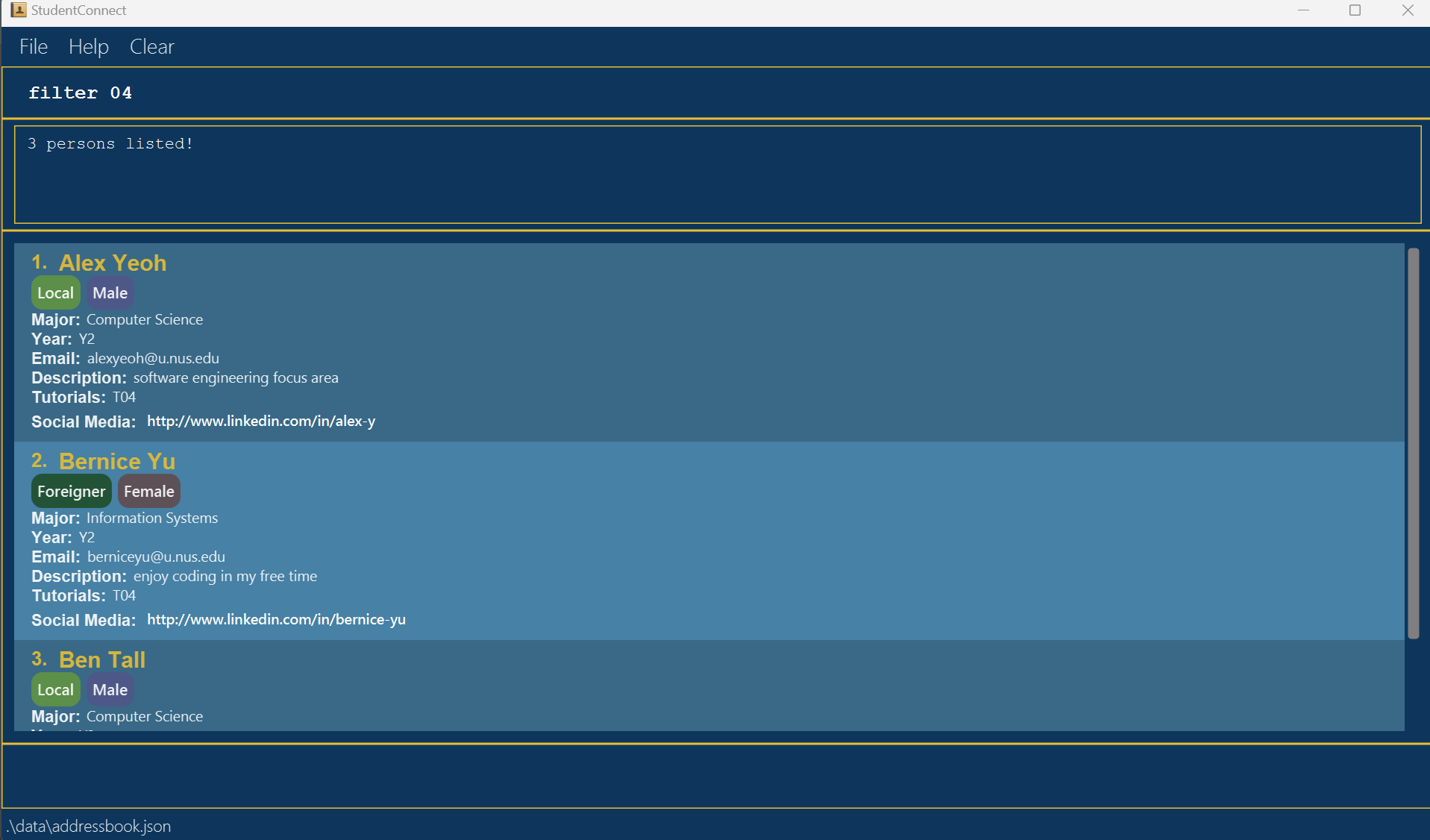
- GUI: List of all student entries whose tutorial(s) match the slot(s) in the system.
Expected Output (Failure):
- Case: Invalid command format, e.g.
filter.
Message:Invalid command format!
filter: Filters all students whose tutorials match any of the specified slots (2-digit numbers between 01 and 22) and displays them as a list with index numbers.
Parameters: SLOT [MORE_SLOTS]...
Example: filter 08 15 - Case: Invalid slot(s) is provided, e.g.
filter 25,filter 0, etc.
Message:Tutorials should be 2-digit numbers between 01 and 22.
Deleting a Student : delete
Deletes a specific student and all personal details based on email.
Format: delete EMAIL
- Deletes the student with the specified
EMAIL. - The email must be registered in the system.
Examples:
-
listfollowed bydelete alexy@u.nus.edudeletes Alex Yeo from the system.
Acceptable Values:
- EMAIL: a previously registered email address ending in
u.nus.edu.
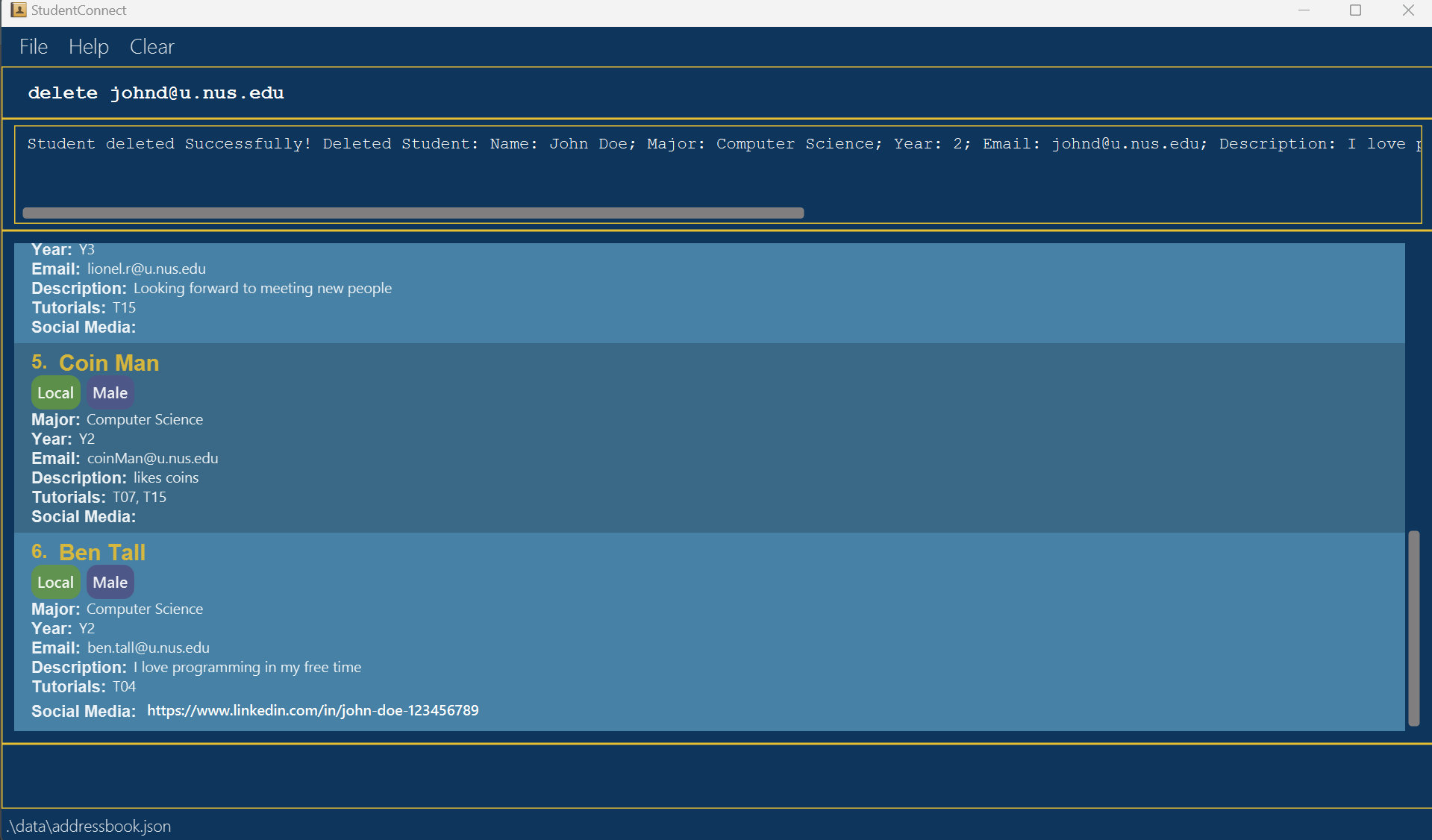
Expected Output (Success):
- GUI: Student details removed from student list.
- Message:
Student deleted successfully! [Deleted student's details]
Expected Output (Failure):
- Case: Provided email not registered in system.
Message:Student with the provided email not found. - Case: Invalid command format e.g.
delete 02.
Message:Invalid command format!
delete: Deletes the student identified by the email address.
Parameters: EMAIL
Example: delete alexyeoh@u.nus.edu
Group Commands
Important:
StudentConnect provides a set of group formation features to make it more convenient for students to find group mates. A group consists of 3 main components: a group number, a tutorial number and the group members.
Group number: Used to uniquely identify the group.
Tutorial number: This number is set by the creator of the group and serves as an indication of which tutorial class the members of the group are interested in enrolling in. It does not restrict students who do not have a matching tutorial number in their profile from joining the group. Running the checkGroup command displays a warning if there are members whose tutorial numbers do not match the group’s tutorial number.
Group members: The students who are members of this group.
Creating a New Group : create
Creates a new empty group with the given tutorial number. The group number is automatically assigned and is used to uniquely identify each group. The tutorial number serves as an indication of which tutorial class the members of the group are interested in enrolling in. This can provide information about the tutorial preferences of the group members, to other students who are looking for a group to join.
Format: create t/TUTORIAL
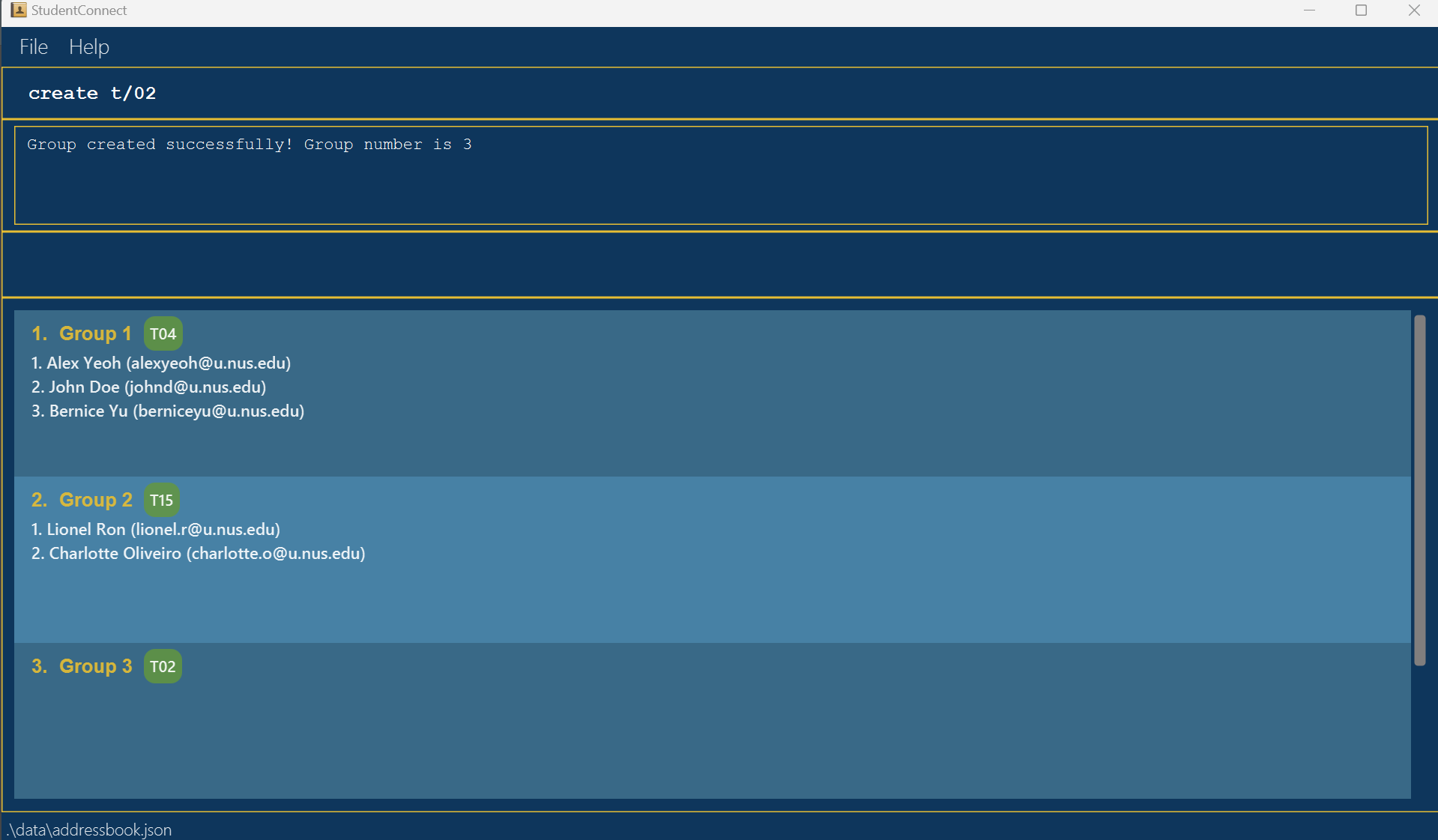
Expected Output (Success):
- GUI: A new empty group, with a group number, is created.
- Message:
Group created successfully! Group number is [GROUP_NUMBER]
Expected Output (Failure):
- Case: Invalid command format, e.g.
create,create 02, etc.
Message:Invalid command format!
create: Creates a new empty group.
Parameters: t/TUTORIAL Example: create t/02
- Case: Invalid tutorial number is provided, e.g.
create t/0,create t/25, etc.
Message:Tutorials should be 2-digit numbers between 01 and 22.
Listing All Groups : listGroup
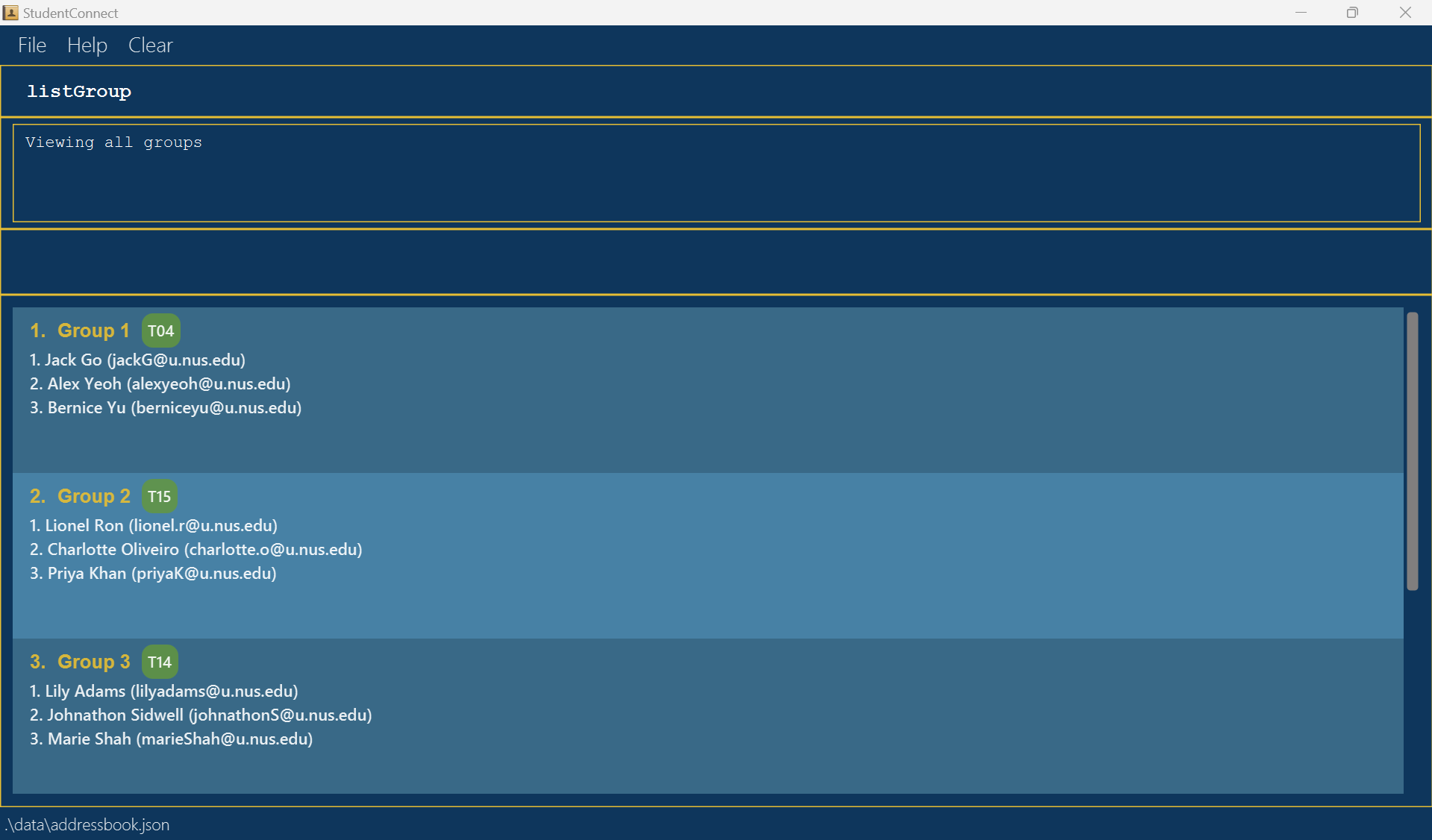
Displays a list of all groups. For each group, the group number, and the names and emails of the members are shown.
Format: listGroup
Expected Output (Success):
- GUI: A list of all groups that are in the system is shown.
- Message:
Viewing all groups
Expected Output (Failure):
- Message:
Error: Unable to retrieve group entries. Please try again.
Deleting a Group : deleteGroup
Deletes a group from the system, based on group number.
Format: deleteGroup gr/GROUP_NUMBER
Examples:
-
deleteGroup gr/2deletes Group 2 from the system. -
deleteGroup gr/5deletes Group 5 from the system.
Acceptable Values:
- GROUP_NUMBER: Must be a non-zero unsigned integer.
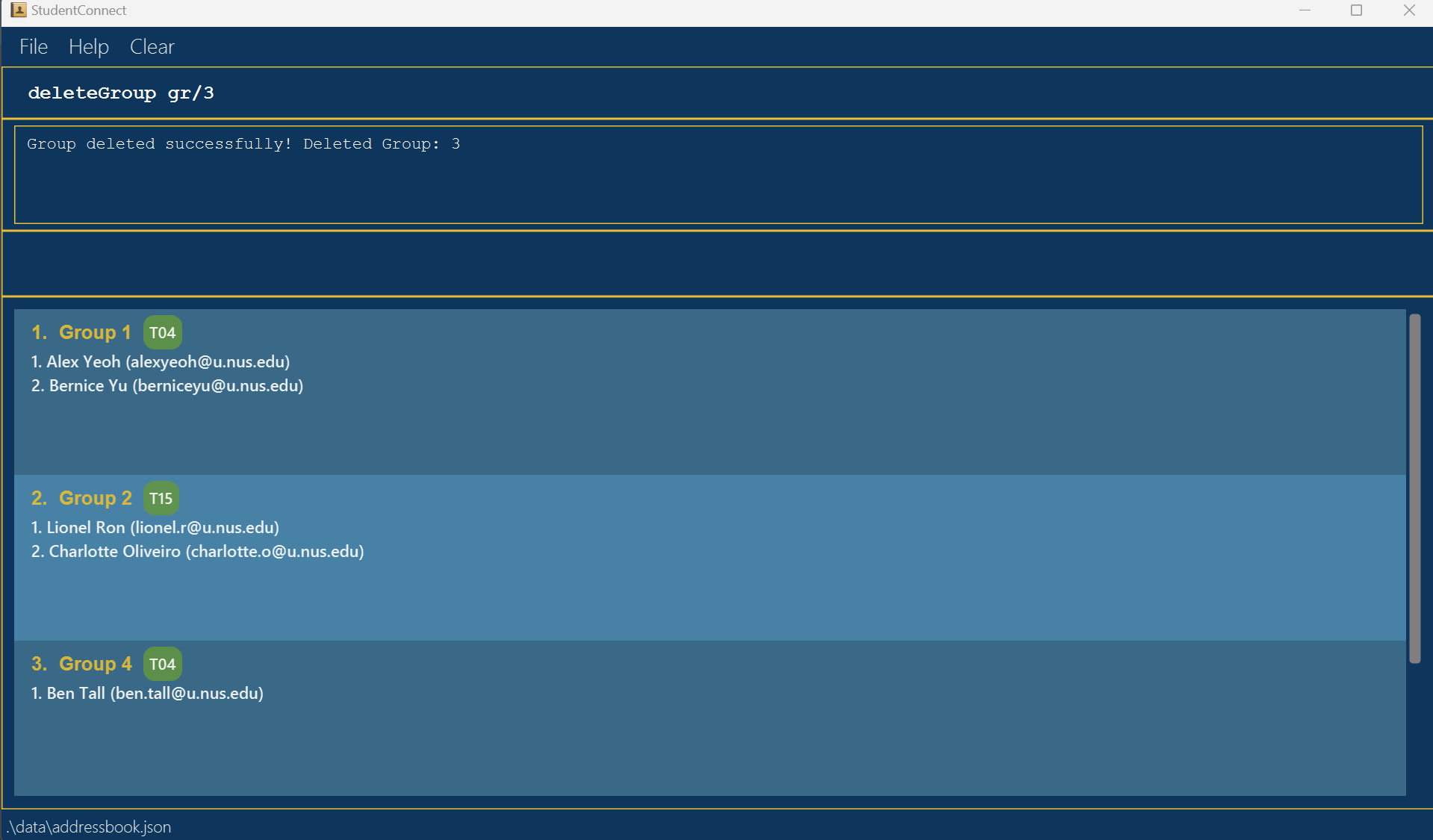
Expected Output (Success):
- GUI: Specified group is no longer visible.
- Message:
Group deleted successfully! Deleted Group: [GROUP_NUMBER]
Expected Output (Failure):
- Case: Group with specified number is not in the system.
Message:Group with the provided group number not found.
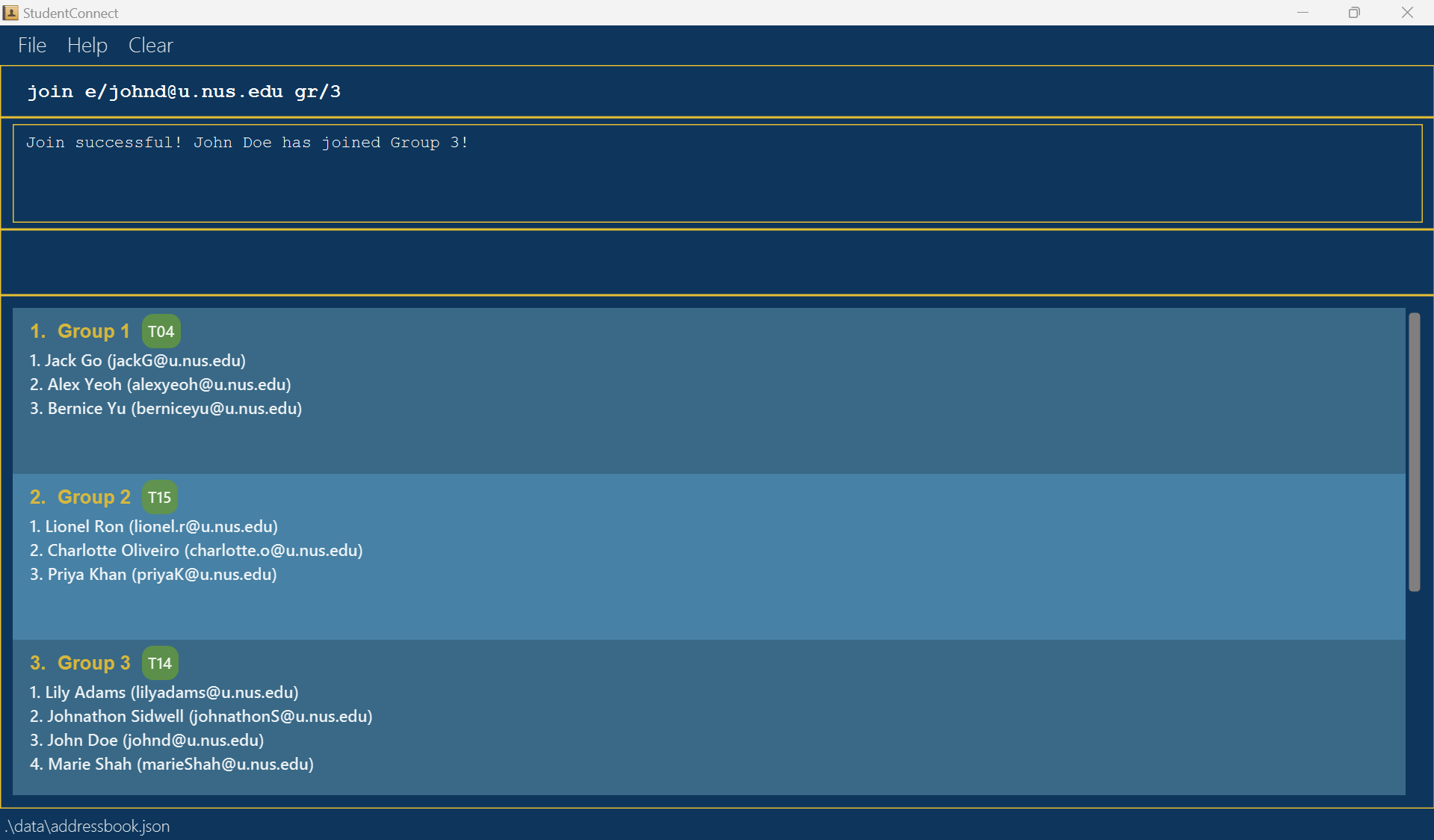
Joining a Group : join
Adds a student to the specified group.
Format: join e/EMAIL gr/GROUP_NUMBER
Expected Output (Success):
- GUI: The student’s name and email are displayed in the specified group’s card.
- Message:
Join successful! [NAME] has joined Group [GROUP_NUMBER]!
Expected Output (Failure):
- Case: Email not found in the system.
Message:Student with the provided email not found. - Case: Group number not found in the system.
Message:Group with the provided group number not found. - Case: Student has been added in the group already.
Message:The provided student is already a member of the provided group. - Case: Group has 5 members and is full.
Message:Join failed as the group already has 5 members. - Case: Student is found in another group already.
Message:The provided student is already in another group.
Leaving a Specific Group : leave
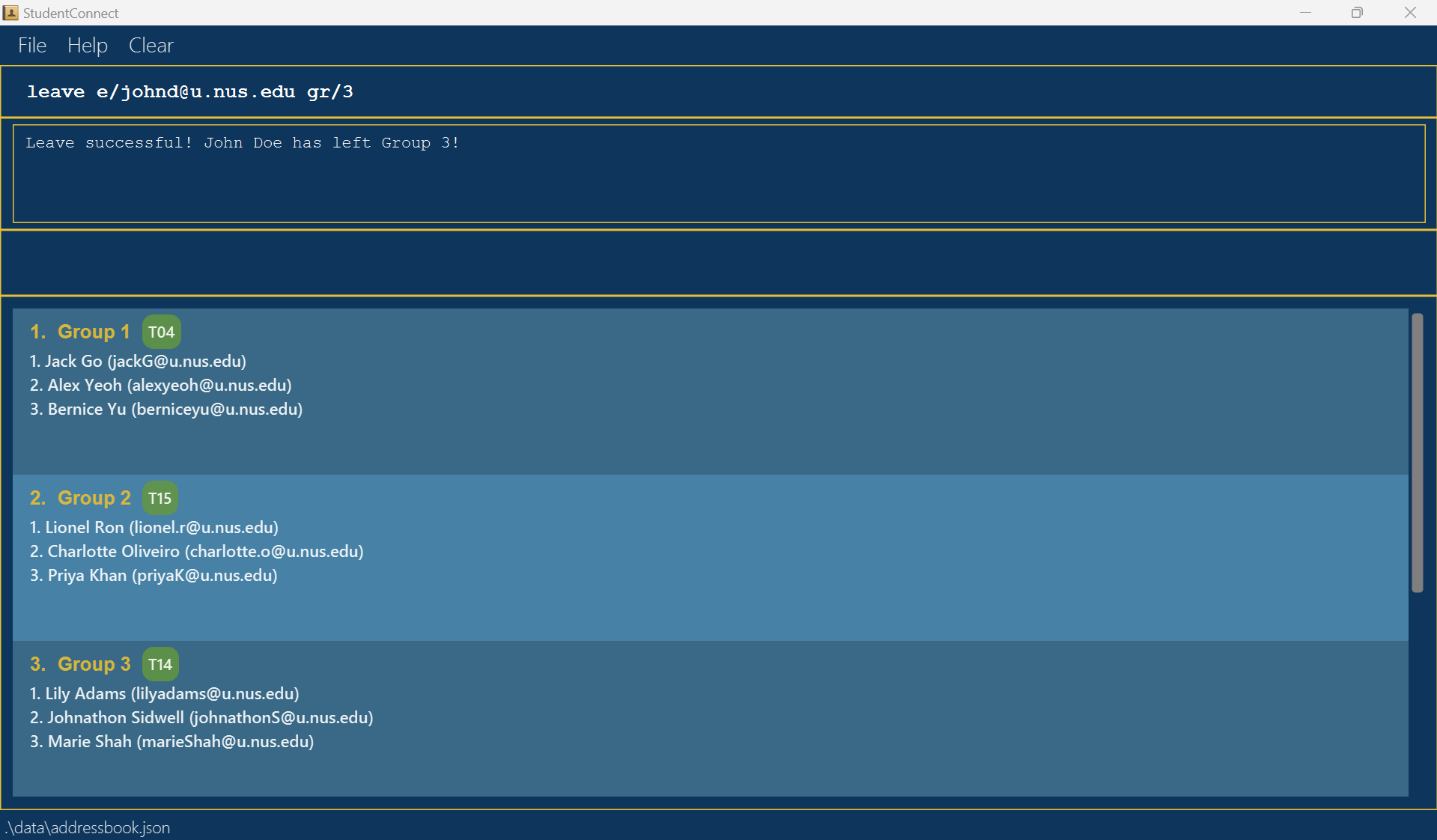
Deletes a member from a specific group, indicating that they have left.
Format: leave e/EMAIL gr/GROUP_NUMBER
- Removes student from specified group.
Examples:
-
leave e/johnd@u.nus.edu gr/1Removes member with emailjohnd@u.nus.edufrom Group 1. -
leave e/bettyc@u.nus.edu gr/11Removes member with emailbettyc@u.nus.edufrom Group 11.
Acceptable Values:
- GROUP_NUMBER: Must be a non-zero unsigned integer.
- EMAIL: Must be a valid NUS email registered in the system.
Expected Output (Success):
- GUI: Student details removed from specified group.
- Message:
Leave successful! NAME has left group 1!
Expected Output (Failure):
- Case: Email not found in the system.
Message:Person with the provided email not found. - Case: Group number not found in the system.
Message:Group with the provided group number not found. - Case: Student is not a member of the provided group.
Message:The above student is not a member of the provided group.
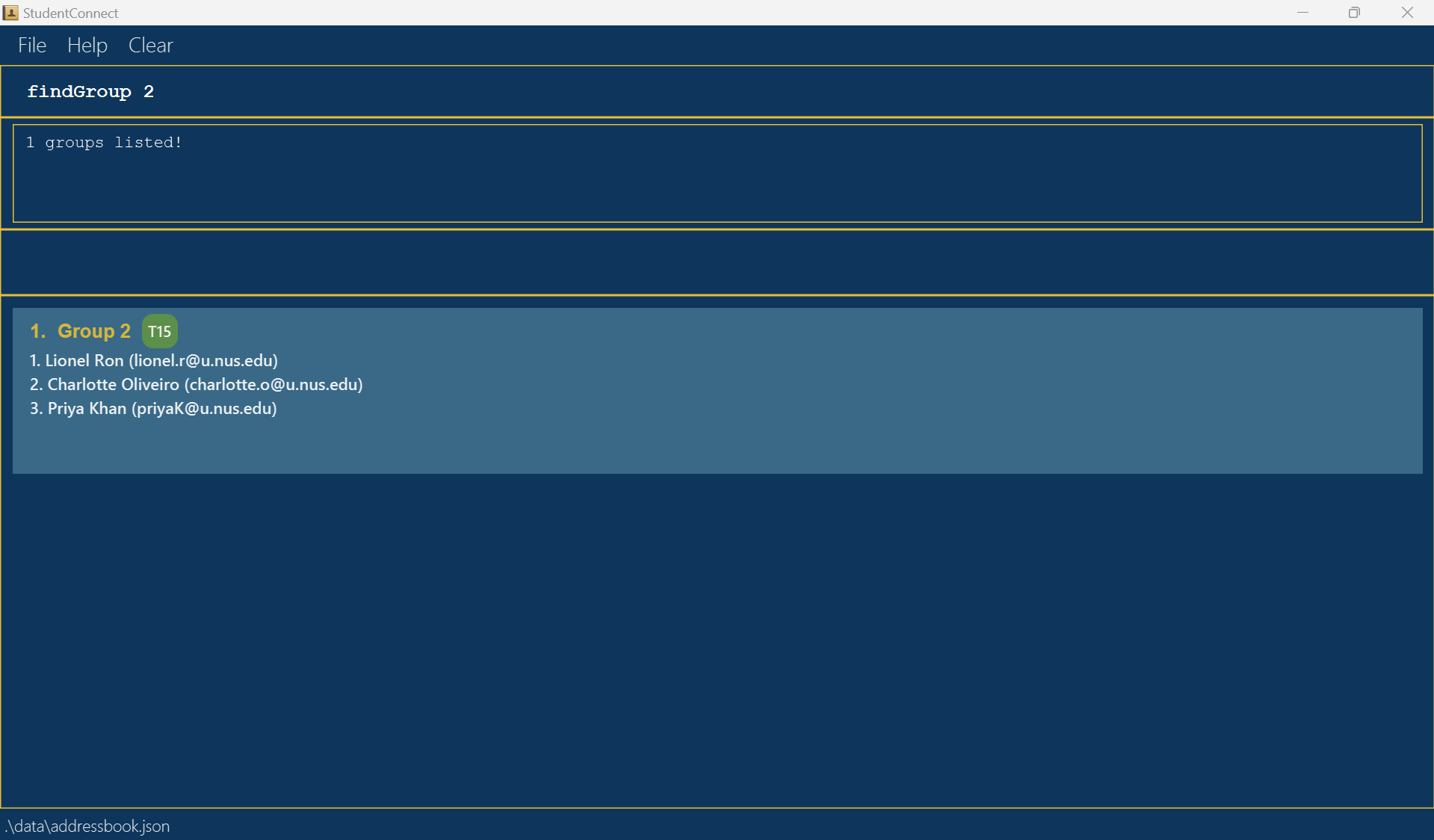
Finding a Group by Group Number : findGroup
Finds group(s) with group number(s) that matches any of the given keywords.
Format: findGroup KEYWORD [MORE_KEYWORDS]
- The order of the keywords does not matter. e.g.
5 12will match12 5. - Only the group number is searched.
- Only the full keywords will be matched. e.g.
1will not match12. - Groups matching one keyword will be returned (i.e.
ORsearch). e.g.5 12will return5,12. - The keyword(s) must be a non-zero unsigned integer.
Examples:
-
findGroup 7returns Group7. -
findGroup 7 15returns Group7, Group15.
Expected Output (Success):
- GUI: List of all group entries whose group number(s) match the keyword(s) in the system.
Expected Output (Failure):
- Case: Invalid command format is provided, e.g.
findGroup.
Message:Invalid command format!
findGroup: Finds all groups whose number contain any of the specified keywords and displays them as a list with index numbers.
Parameters: KEYWORD [MORE_KEYWORDS]...
Example: findGroup 1 5 10 - Case: Invalid keyword(s) is provided, e.g.
findGroup a,findGroup 0, etc.
Message:Group number is not a non-zero unsigned integer.
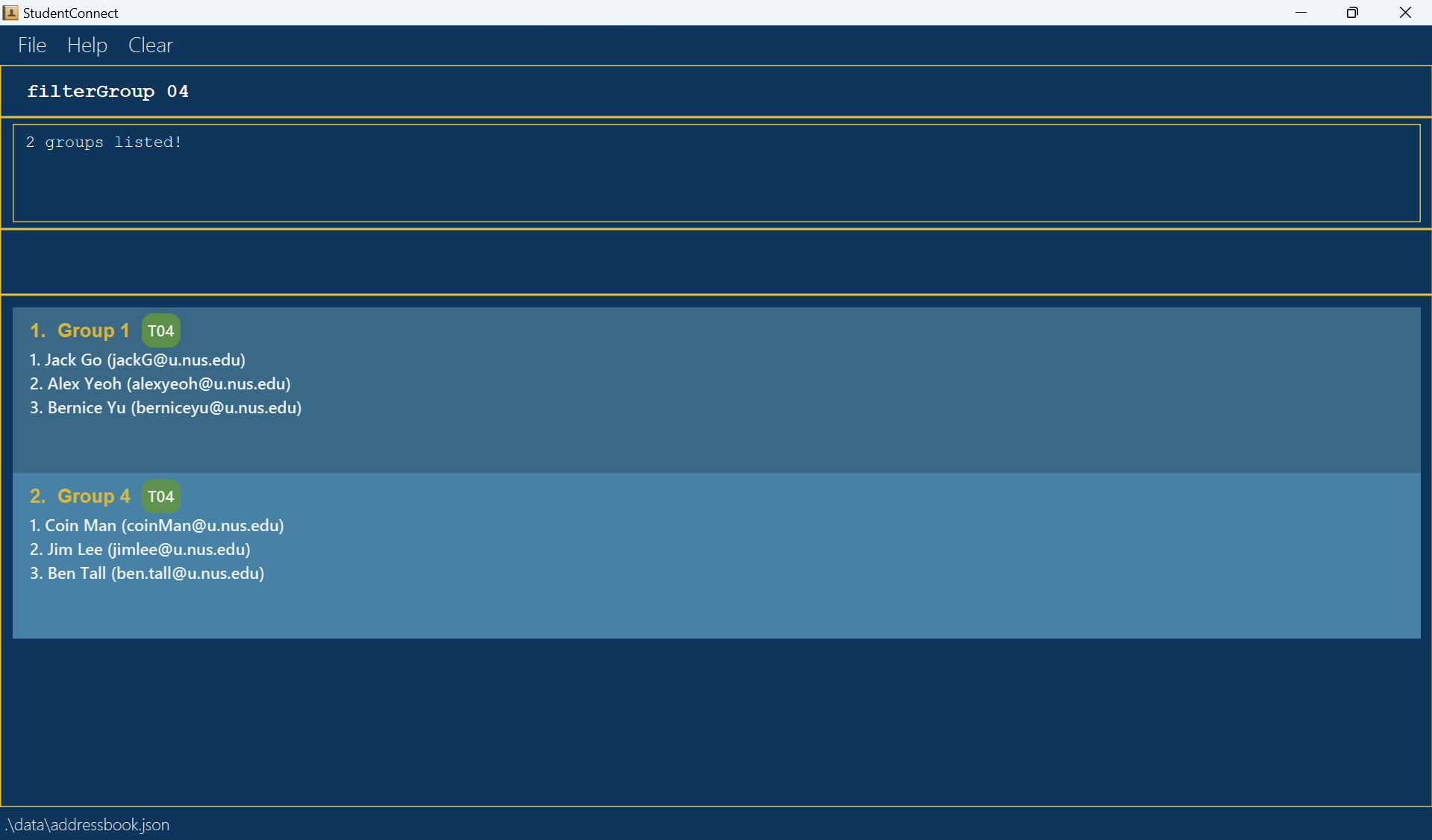
Filtering Groups by Tutorial : filterGroup
Filters the groups by tutorial based on the given slot.
Format: filterGroup SLOT
- The slot must be 2-digit numbers between
01and22inclusive. - Tutorials are only accepted as 2-digits, i.e.
3is not a valid tutorial, but03is. - Only the tutorial is searched.
Examples:
-
filterGroup 03returns groups that belong toT03.
Expected Output(Success):
- GUI: List of all group entries with the tutorial that match the slot in the system.
Expected Output (Failure):
- Case: Invalid command format is provided, e.g.
filterGroup.
Message:Invalid command format!
filterGroup: Filters all groups that belong to the specified tutorial slot (2-digit numbers between 01 and 22) and displays them as a list with index numbers.
Parameters: SLOT
Example: filterGroup 01" - Case: Invalid slot is provided, e.g.
filterGroup 0,filterGroup 25, etc.
Message:Tutorials should be 2-digit numbers between 01 and 22.
Checking a Group : checkGroup
Checks if a group fulfils the group requirements of the course.
Format: checkGroup GR0UP_NUMBER
- Checks the group with the specified
GROUP_NUMBER. - The group number must come from a group that has been created in the system.
- checkGroup does not restrict students from joining a group, instead, it provides helpful alerts to help groups adhere to the criteria set by CS2103T and CS2101.
Examples:
-
checkGroup 4checks the group with a group number4if it is created in the system.
Expected Output (Success):
- Case: Group fulfils the group requirements.
Message:Group GROUP_NUMBER
Group fulfils the diversity requirements of CS2103T.
- Case: Group has no members.
Message:Group GROUP_NUMBER
Group does not have any members.
You can enter the help command for more information on group requirements. - Case: Group has only 1 member.
Message:Group GROUP_NUMBER
Group has only one member.
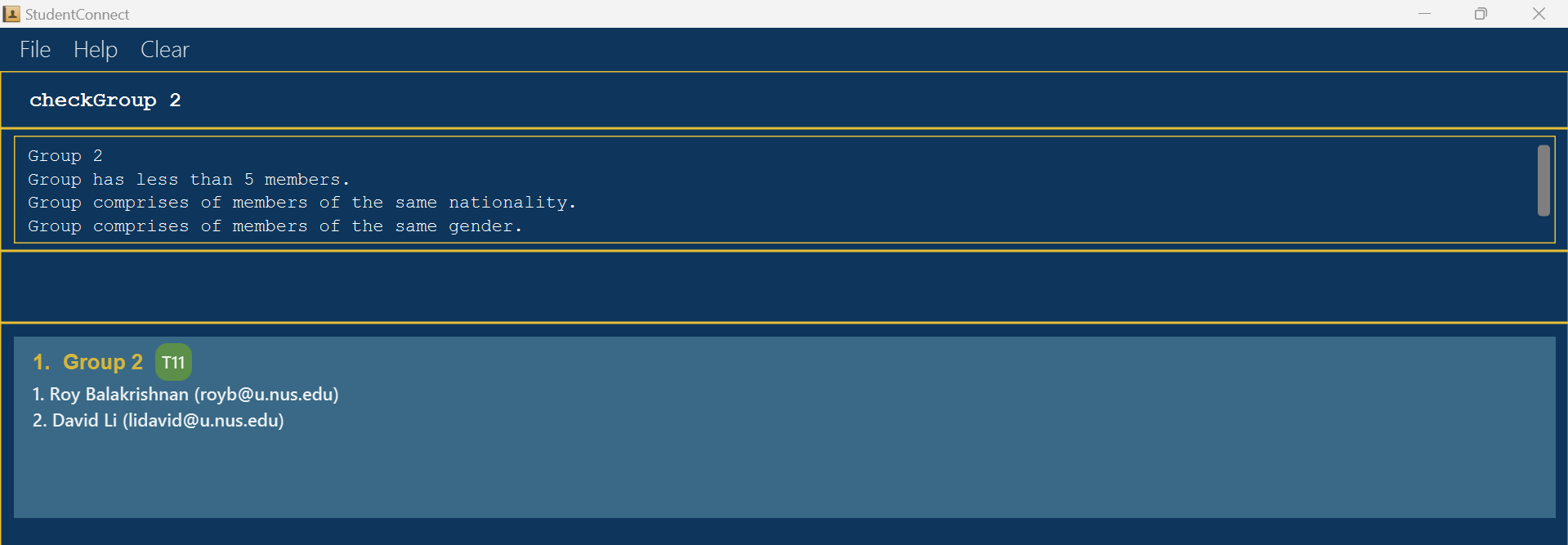
You can enter the help command for more information on group requirements. - Case: Group has more than 1 member and does not fulfil the group requirements. Possible messages include:
Message:Group GROUP_NUMBER
Message:Group has less than 5 members.
Message:Group size has exceeded limit with more than 5 members.
Message:Group comprises of members of the same nationality.
Message:Group comprises of members of the same gender.
Message:Not every group member's tutorial matches the group's tutorial.
Message:You can enter the help command for more information on group requirements.
Expected Output (Failure):
- Case: Invalid command format is provided, e.g.
checkGroup.
Message:Invalid command format!
checkGroup: Checks the group identified by its group number.
Parameters: GROUP_NUMBER"
Example: checkGroup 1 - Case: Group not found in the system.
Message:Group with the provided group number not found.
Listing All Tasks : tasks
Lists out all tasks for a specific group.
Format: tasks GROUP_NUMBER
- Lists out all tasks for the specified group.
Examples:
-
tasks 2Lists out all tasks for group2. -
tasks 5Lists out all tasks for group5.
Acceptable Values:
- GROUP_NUMBER: Must be a non-zero unsigned integer.
Expected Output (Success):
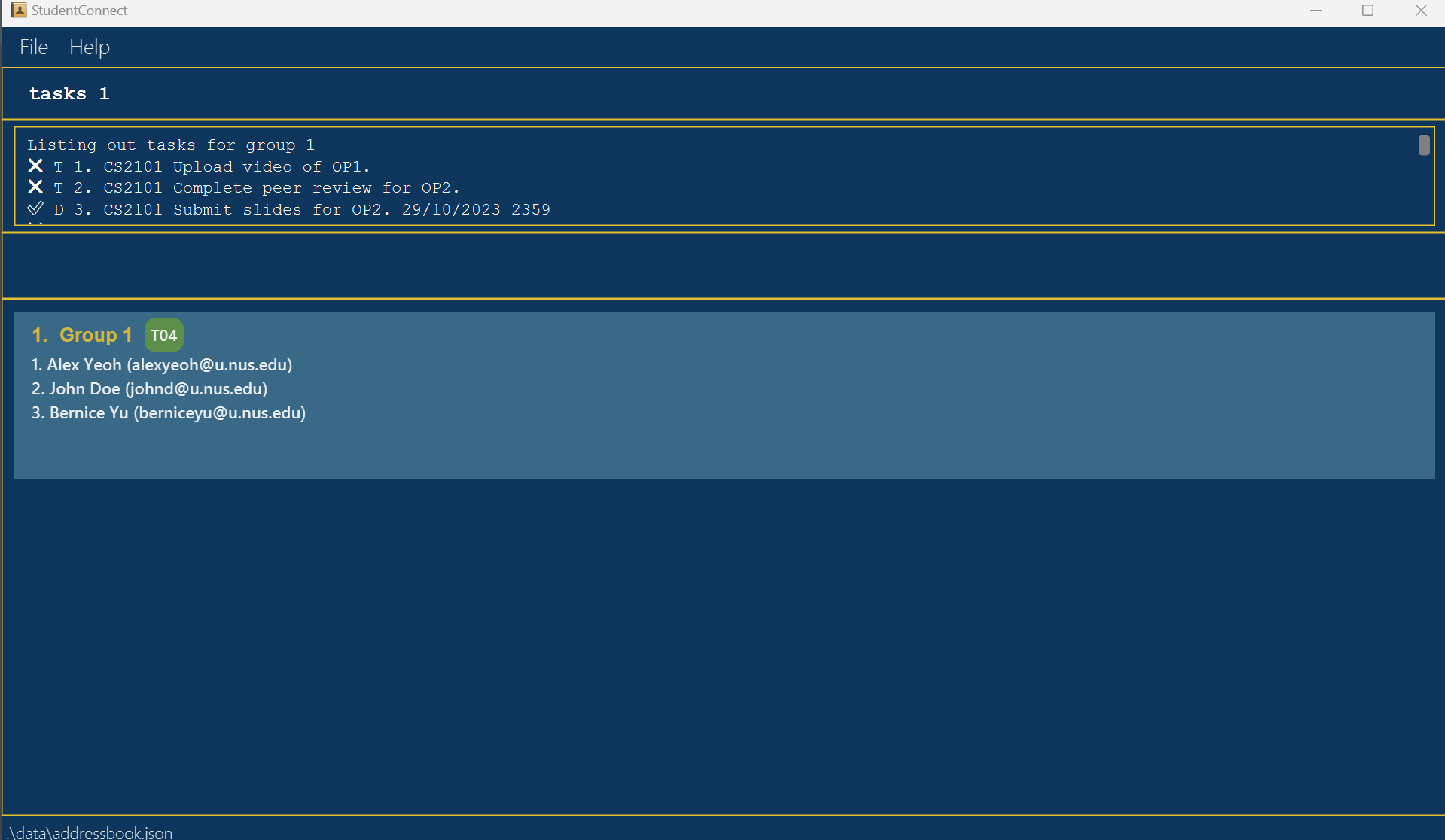
- GUI: List of all tasks for the specified group is displayed, the specified group and group members are shown.
- Message:
Here are the tasks for group [GROUP_NUMBER]: [list of tasks]
Expected Output (Failure):
- Case: Invalid tasks command, e.g.
tasks gr/3,tasks t, etc.
Message:Invalid command format!
tasks: Lists out all tasks for a specific group.
Parameters: GROUP_NUMBER
Example: tasks 3 - Case: Invalid group number as the group has not yet been created.
Message:Group with the provided group number not found.
Marking a Task as Done : mark
Mark a task for a specified group as done.
Format: mark gr/GROUP_NUMBER ti/TASK_INDEX
- Marks the task of the specified group as done.
Examples:
-
mark gr/2 ti/1Marks task1of group2as done. -
mark ti/2 gr/12Marks task2of group12as done.
Acceptable Values:
- GROUP_NUMBER: Must be an integer value that is grater than 0 and a group number that is found in the group list.
- TASK_INDEX: Must be an integer value that is greater than 0 and smaller than task size.
Expected Output (Success):
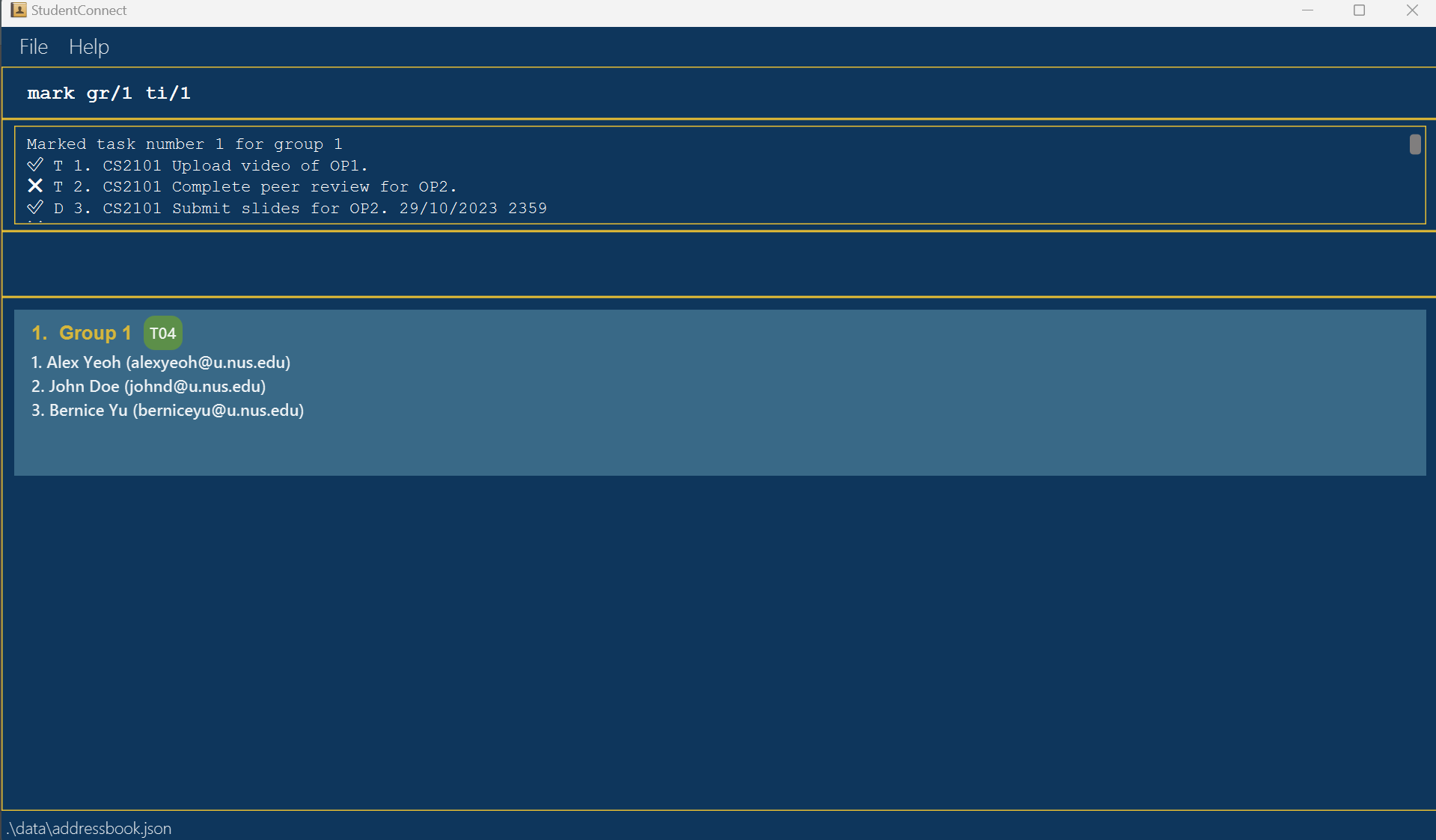
- GUI: The task in the specified group is marked as done and task list is updated.
- Message:
Marked task number (ti) for group (gr) [and displays the updated task list]
Expected Output (Failure):
- Case: Invalid mark command, e.g.
mark,mark t, etc.
Message:Invalid command format! mark: Mark task specified as done. Parameters: gr/GROUP_NUMBER ti/TASK_INDEX Example: mark gr/2 ti/3 - Case: Invalid group number, a group number that is not found from the list in
listGroupcommand.
Message:Group with the provided group number not found. - Case: Invalid group number, e.g. zero or negative numbers.
Message:Group number is not a non-zero unsigned integer. - Case: Invalid task index, e.g. zero or negative numbers.
Message:Task index must be a positive integer. - Case: Invalid task index, e.g. task index greater than the number of tasks found from the list in
taskscommand.
Message:Invalid task index. Task not found.
Marking a Task as Not Done : unmark
Mark a task for a specified group as not done.
Format: unmark gr/GROUP_NUMBER ti/TASK_INDEX
- Marks the task of the specified group as not done.
Examples:
-
unmark gr/7 ti/3Marks task3of group7as not done. -
unmark ti/5 gr/9Marks task5of group9as not done.
Acceptable Values:
- GROUP_NUMBER: Must be an integer value that is grater than 0 and a group number that is found in the group list.
- TASK_INDEX: Must be an integer value that is greater than 0 and smaller than task size.
Expected Output (Success):
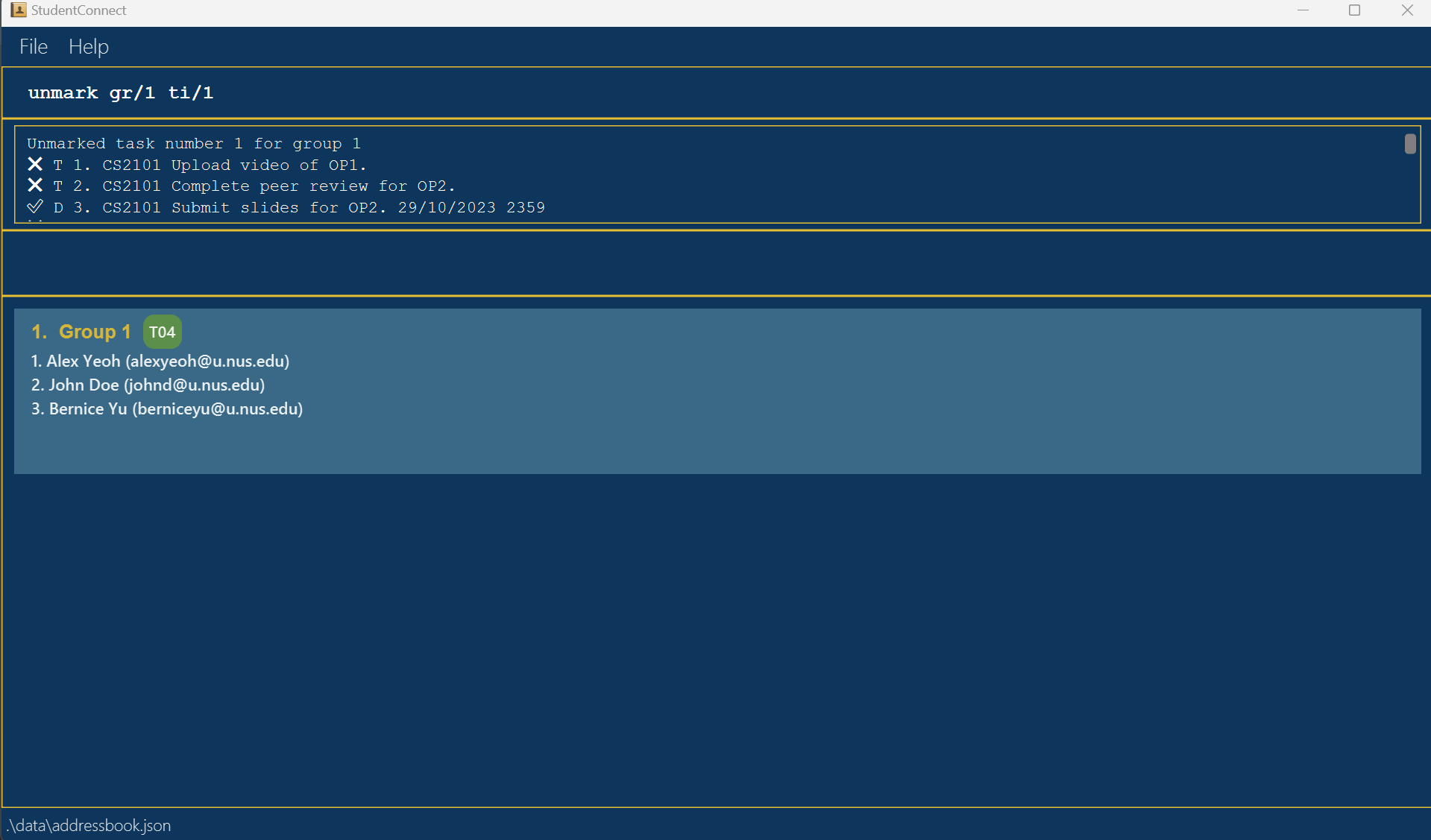
- GUI: The task in the specified group is marked as not done and task list is updated.
- Message:
Unmarked task number (ti) for group (gr) [and displays the updated task list]
Expected Output (Failure):
- Case: Invalid unmark command, e.g.
unmark,unmark t, etc.
Message:Invalid command format! unmark: Mark task specified as not done. Parameters: gr/GROUP_NUMBER ti/TASK_INDEX Example: unmark gr/2 ti/3 - Case: Invalid group number, a group number that is not found from the list in
listGroupcommand.
Message:Group with the provided group number not found. - Case: Invalid group number, e.g. zero or negative numbers.
Message:Group number is not a non-zero unsigned integer. - Case: Invalid task index, e.g. zero or negative numbers.
Message:Task index must be a positive integer. - Case: Invalid task index, e.g. task index greater than the number of tasks found from the list in
taskscommand.
Message:Invalid task index. Task not found.
Saving The Data
Students’ data are saved in the hard disk automatically after any command that changes the data. There is no need to save manually.
Editing The Data File
Students’ data are saved automatically as a JSON file [JAR file location]/data/addressbook.json. Advanced users are welcome to update data directly by editing that data file.
Caution:
If your changes to the data file makes its format invalid, StudentConnect will discard all data and start with an empty data file at the next run. Hence, it is recommended to take a backup of the file before editing it.
FAQ
Q: How do I transfer my data to another Computer?
A: Install the app in the other computer and overwrite the empty data file it creates with the file that contains the data of your previous StudentConnect home folder.
Q: Where is my data being saved?
A: It is saved in [JAR file location]/data/addressbook.json.
Known Issues
-
When using multiple screens, if you move the application to a secondary screen, and later switch to using only the primary screen, the GUI will open off-screen. The remedy is to delete the
preferences.jsonfile created by the application before running the application again. -
Clear Command, if you use the clear command, but exit the application incorrectly using the red exit button instead of running the exit command, data will not be cleared. Kindly always use the exit command to leave the application.
Command Summary
| Action | Format, Examples |
|---|---|
| Help | help |
| Clear | clear |
| Exit | exit |
| Add |
add n/NAME m/MAJOR y/YEAR e/EMAIL d/DESCRIPTION [t/TUTORIALS]… [sm/SOCIALMEDIA]… nt/NATIONALITY g/GENDER e.g., add n/Betsy Crowe m/Computer Science y/2 e/betsycrowe@u.nus.edu t/05 d/I’m adept at Backend technologies nt/local g/f
|
| List | list |
| Edit |
edit EMAIL [n/NAME] [m/MAJOR] [y/YEAR] [e/EMAIL] [d/DESCRIPTION] [t/TUTORIALS]… [sm/SOCIALMEDIA]… [nt/NATIONALITY] [g/GENDER] e.g., edit jameslee@u.nus.edu n/James Lee e/jameslee@u.nus.edu
|
| Find |
find KEYWORD [MORE_KEYWORDS]…e.g., find James Jake
|
| Filter |
filter SLOT [MORE_SLOTS]…e.g., filter 05 11
|
| Delete |
delete EMAILe.g., delete betsycrowe@u.nus.edu
|
| Create group |
create t/[TUTORIAL] e.g., create t/01
|
| List groups | listGroup |
| Delete group |
deleteGroup gr/[GROUP_NUMBER} e.g., deleteGroup gr/1
|
| Join group |
join e/[EMAIL] gr/[GROUP_NUMBER] e.g., join e/johnd@u.nus.edu gr/1
|
| Leave group |
leave e/[EMAIL] gr/[GROUP_NUMBER} e.g., leave e/johnd@u.nus.edu gr/1
|
| Find group |
findGroup KEYWORD [MORE_KEYWORDS]e.g., findGroup 7 15
|
| Filter group |
filter SLOT e.g., filterGroup 3
|
| Check group |
checkGroup GR0UP_NUMBER e.g., checkGroup 4
|
| List Tasks |
tasks GROUP_NUMBERe.g., tasks 5
|
| Mark |
mark gr/GROUP_NUMBER ti/TASK_INDEXe.g., mark gr/2 ti/1
|
| Unmark |
unmark gr/GROUP_NUMBER ti/TASK_INDEXe.g., unmark gr/5 ti/1
|
Appendix
This section includes details on the requirements of each field in the StudentConnect system.
Name Format
The name field indicates the student’s name.
Tip:
Ensure that the name is appropriately formatted with only letters and spaces, without exceeding the specified character limit below. Special characters and digits are not permitted.
- Type: Alphabetic.
- Character Restrictions: Only alphabetical characters (A-Z, a-z) and spaces are allowed.
- Length: Must not exceed 30 characters.
- Blank Fields: The field should not be left blank.
Examples of Valid Inputs:
- John Doe
- Alice
- La Niña
- Élise DuPont
Examples of Invalid Inputs:
- John123 (Invalid due to numeric characters)
- John_Doe (Invalid due to underscore)
- [Blank Field] (Invalid as the field cannot be blank)
- Elizabeth Alexandra Mary Windsor (Invalid as it exceeds 30 characters)
Valid Majors
The majors field indicates the major that the student is enrolled in.
Tip:
If your major is not in the list below, you can simply write Others as your major.
Tip:
If you have a double degree, double major or a major-minor, you are required to choose only one major. Please select any one of the majors listed below.
For now, we accept the following majors in National University of Singapore(NUS):
| Major |
|---|
| Accountancy |
| Actuarial Studies |
| Anthropology |
| Architecture |
| Biological Sciences |
| Biomedical Engineering |
| Business Administration |
| Business Administration (Accountancy) |
| Business Analytics |
| Chemical Engineering |
| Chemistry |
| Chinese Language |
| Chinese Studies |
| Communications and New Media |
| Civil Engineering |
| Computer Engineering |
| Computer Science |
| Data Science and Analytics |
| Data Science and Economics |
| Dentistry |
| Economics |
| Electrical Engineering |
| English Language |
| English Literature |
| Environmental Engineering |
| Environmental Studies |
| Food Science and Technology |
| Geography |
| Global Studies |
| History |
| Japanese Studies |
| Industrial Design |
| Industrial Engineering |
| Industrial and Systems Engineering |
| Information Systems |
| Information Security |
| Infrastructure and Project Management |
| Landscape Architecture |
| Law |
| Life Sciences |
| Malay Studies |
| Management |
| Marketing |
| Materials Science and Engineering |
| Mathematics |
| Mechanical Engineering |
| Medicine |
| Pharmaceutical Science |
| Philosophy |
| Philosophy, Politics, and Economics |
| Physics |
| Political Science |
| Psychology |
| Quantitative Finance |
| Real Estate |
| Social Work |
| Sociology |
| South Asian Studies |
| Southeast Asian Studies |
| Statistics |
| Systems Engineering |
| Theatre Studies |
| Urban Studies |
| Visual Communications |
Valid Years
The year field is used to represent the student’s current year of study.
Tip:
This field strictly requires a single-digit number. Ensure there are no leading zeros or non-numeric characters.
| Year |
|---|
| 1 |
| 2 |
| 3 |
| 4 |
| 5 |
| 6 |
Email Formats
The email field is used to represent the student’s email, and is the unique identifier for each student.
Tip:
Ensure the email address includes the specified domain and the local-part conforms to the outlined character restrictions and length below.
-
Local-Part Format:
- Allowed Characters: Alphanumeric characters (A-Z, a-z, 0-9) and special characters (+, _, ., -) only.
- Character Limit: Must not exceed 20 characters.
- Positioning of Special Characters: The local-part must not start or end with any of the special characters (+, _, ., -).
-
Structure: It should be in the format of
local-part@u.nus.edu.
-
Domain Name:
-
Fixed Domain: The domain name must be
u.nus.edu. - Symbol: The local-part and domain name should be separated by an ‘@’ symbol.
-
Fixed Domain: The domain name must be
Examples of Valid Inputs:
- johndoe@u.nus.edu
- alice.bob@u.nus.edu
- n_user123@u.nus.edu
Examples of Invalid Inputs:
- john@u.nus.edu (Invalid as it exceeds 20 characters in the local-part)
- .johndoe@u.nus.edu (Invalid as the local-part starts with a special character)
- johndoe@example.com (Invalid as the domain name is not ‘u.nus.edu’)
- johndoe@u.nus (Invalid as the domain name is incomplete)
Description Formats
The description field is to allow student’s to put any fun facts or information they’d like to share.
Tip:
Descriptions that are blank or that exceed 150 characters are not accepted.
Length Constraints:
- Minimum Length: The description must not be blank.
- Maximum Length: The description should not exceed 150 characters.
Examples of Valid Inputs:
- “Minoring in Mathematics”
- “Backend Developer”
- “In need of two more members!”
Valid Tutorials
The tutorial field is used to represent tutorial slots students’ are interested in or have been assigned.
Tip:
This field strictly requires a double-digit number. Ensure are no non-numeric characters.| Tutorial |
|---|
| 01 |
| 02 |
| 03 |
| 04 |
| 05 |
| 06 |
| 07 |
| 08 |
| 09 |
| 10 |
| 11 |
| 12 |
| 13 |
| 14 |
| 15 |
| 16 |
| 17 |
| 18 |
| 19 |
| 20 |
| 21 |
| 22 |
Valid Social Media Links
The social media links field is used for entering URLs that direct to social media profiles or pages.
Tip:
Ensure that the social media links conform to the standard URL format, with the correct protocol and a valid domain name. The link should be fully functional and direct to the intended social media page.- Protocol Prefix: Must begin with either “http://” or “https://”.
-
Domain Name:
- Allowed Characters: Alphanumeric characters (A-Z, a-z, 0-9), dots (.), and hyphens (-).
- Requirement: The domain name must consist of one or more of the allowed characters.
- Structure: The format should follow the standard URL structure, starting with the protocol prefix, followed by the domain name.
Examples of Valid Inputs:
- http://facebook.com/username
- https://twitter.com/username
- http://www.linkedin.com/in/username
Examples of Invalid Inputs:
- www.instagram.com/username (Invalid as it lacks the “http://” or “https://” prefix)
- https://facebook_com/username (Invalid due to the use of an underscore in the domain name)
- https:/twitter.com/username (Invalid due to incorrect protocol format)
Valid Nationalities
Nationality field is used to display the nationality of the student.
Tip:
The nationality field is case-insensitive, but can only contain values local or foreigner.
| Nationality |
|---|
| local |
| foreigner |
Valid Genders
Gender field is used to display the gender of the student.
Tip:
The gender field is case-insensitive, but can only contain values M or F.
| Gender |
|---|
| M |
| F |
Valid Group Numbers
The group number field is used to specify the numeric identifier of a group.
Tip:
Verify that the group number entered is for a group that exists in the system.Ensure the number is purely numeric without any alphabetic characters or special symbols.
- Type: Numeric.
- Reference Requirement: The number must correspond to a group that has already been created within the system.
- Uniqueness: Each group number is unique. It should not duplicate the identifier of another group.
Valid Task Indexes
The task index field is used to differentiate tasks.
Tip:
Verify that the task index entered is for a task that exists for that group.Ensure the number is purely numeric without any alphabetic characters or special symbols.
- Type: Numeric
- Reference Requirement: The number must correspond to a task within the system.
- Uniqueness: Each task number is unique. It should not duplicate the identifier of another task .
Glossary
This glossary is intended to provide definitions for terms that may be unfamiliar to you. It is arranged in alphabetical order.
-
CS2101: Effective Communication for Computing Professionals - An NUS course designed to equip computing professionals with essential communication skills, both in technical and non-technical contexts. It covers the creation of clear and comprehensible software documentation and effective communication strategies for diverse audiences.
-
CS2103T: Software Engineering - An NUS course focusing on the systematic and rigorous development of software systems. It covers essential concepts and analytical tools necessary for software engineering.
-
Case-Insensitive: Refers to the handling of text where uppercase and lowercase letters are treated as equivalent. For instance, in a case-insensitive search, searching for “Java” or “java” would yield the same results.
-
Command Terminal: An interface in a computing environment where you can input text commands to perform specific tasks. Some examples include “Terminal” on macOS and “Powershell” on Windows.
-
Double Degree: An academic program where a student earns two distinct degrees simultaneously, usually in different fields.
-
Double Major: A type of academic degree where a student completes two sets of major requirements, although they receive just one degree.
-
Major-Minor: An academic program where a student completes a major (primary focus) and a minor (secondary concentration) in different subjects.
-
Extraneous Parameters: These are additional or unnecessary parameters given in a command that do not affect its execution but are not required for the command to function properly.
-
GUI (Graphical User Interface): A type of user interface that allows you to interact with electronic devices through graphical icons and visual indicators, as opposed to text-based interfaces, typed command labels, or text navigation.
-
Home Folder: In computing, this is a personal directory assigned to you in a file system, where they store personal files, settings, and configurations.
-
Issue (GitHub): A feature in GitHub used to track ideas, enhancements, tasks, or bugs for work on GitHub projects.
-
Java 11: A version of Java, a widely used programming language and computing platform. Java 11 includes various updates and features different from its predecessors.